Installing a SSL Certificate on a Citrix NetScaler Insight Center Appliance
If you plan to connect your Citrix Director Installation to a NetScaler Insight Center Appliance and would like to use a HTTPS connection you need to exchange the SSL Certificate on the appliance again a trusted one.
The first step is to create a host entry for your NetScaler Insight Center Appliance (NSICA) on your internal DNS server. Then you need to create a certificate (split into a PEM and a KEY file) with the FQDN of your NSICA. After you have created the certificate open the NSICA configuration and switch to CONFIGURATION => NETSCAKER INSIGHT CENTER => SSL CERTIFICATE FILES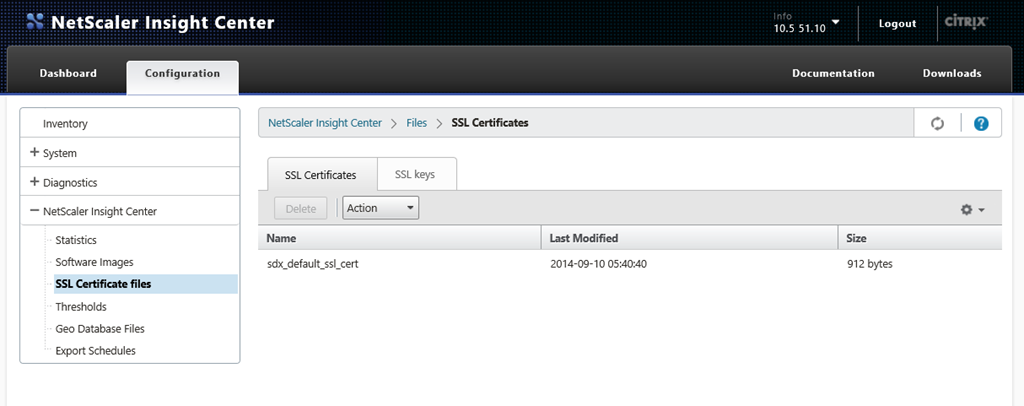
Click on ACTION and choose UPLOAD. 
Browse to your PEM File of the Certificate and Upload it to the NSICA. 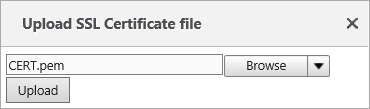
The PEM File should now be listed under “sdx_default_ssl_cert”. 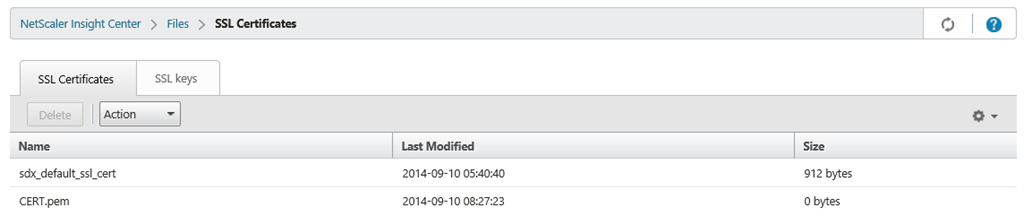
Switch to SSL KEYS and choose UPLOAD again. 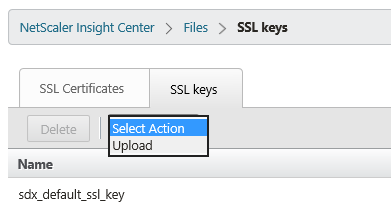
Browse for the KEY File of the Certificate and upload it. 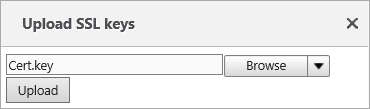
Like before the KEY File is now listed under “sdx_default_ssl_key”. 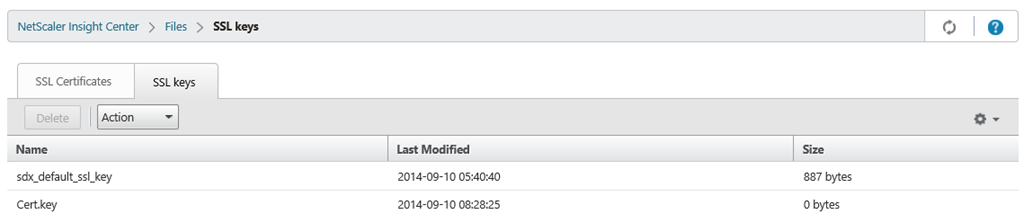
After uploading the PEM and KEY file you need to navigate to SYSTEM => INSTALL SSL CERTIFICATE. 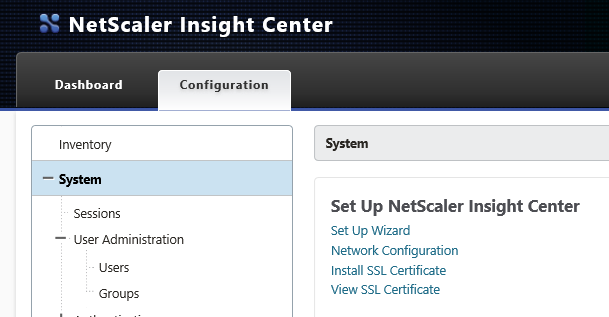
Choose the just uploaded PEM and KEY File and confirm it with OK. 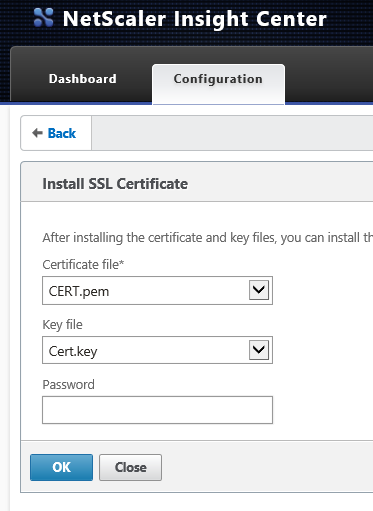
After a necessary reboot the SSL Certificate is active and you can connect your Director to the NetScaler Insight Center Appliance using HTTPS. 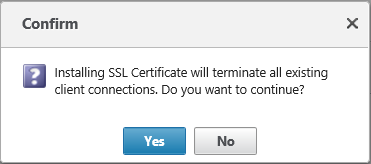


 Jan Hendriks Blog