Today we had the following error when we tried to change the image mode from “Private” to “Standard” or reversed: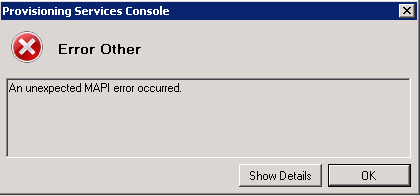
“An unexpected MAPI error occurred.”
Under the details Button the following info was displayed:
”Failed to map vDisk, no Driver. at Mapi.CommandsRun.CommandRunWithReturnMapDisk2.MapDisk(UInt32 localServerIntId, String remoteServerName, String diskName, String diskPath, UInt32 DeviceSerialNumber, UInt32 diskId, List`1 serverIps, UInt16 serverFirstPort)”.
The problem only occured when under the “Microsoft Volume Licensing” Tab the option “Key Management Service (KMS)” was activated: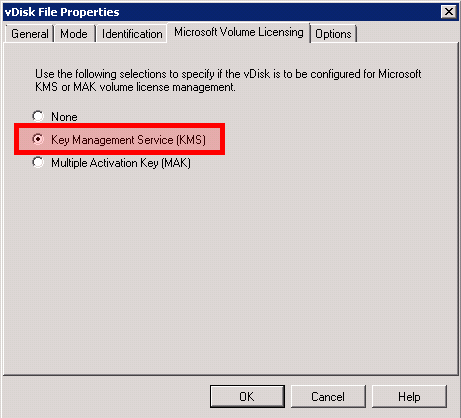
So if you want to change the “Mode” of a Vdisk from “Private to Standard (or reversed) just activate under “Microsoft Volume Licensing” the option “None” or “Multiple Activation Key (MAK)” – make your change and open again the “vDisk File Properties” and change back the “Licensing Option” to “Key Management Service KMS”.
Hopefully there will be a fix available in the next weeks.
At the moment we are implementing a new NetApp Storage-System (with two controllers) at our Company and had in interesting error when we tried to configure the NetApp-Controllers via http. A connection to both NetApp-Controllers using http worked without any error from a Client with a single NIC. When we tried to configure the NetApp-Controllers from a HP-Server with teamed Network-Cards one controller was reacting normally and one was really slow. The same effect happened on SSH-Connections. When you pressed several times the browser-refresh-button on the normal working controller it started to react really slow – but then the other controller was working normally without any delay. After some searching at Google I found an article which mentioned to run the following command on every NetApp-Controller:
options ip.fastpath.enable off
After running this command on both NetApp-Controllers it was possible to manage both NetApp-Controllers without any delay – even from HP Servers with teamed NICs. So the interesting question was: What happens if this option is disabled? So we started to search in the NetApp-KB and found the KB-Article-ID 2013130.
In this Article NetApp describes exactly the errors we had – and the given solution is the above mentioned option.
But the coolest thing is the Cause for this:
”The cause for this issue is unknown”.
So if you are using HP-Servers with teamed NICs and a NetApp-Storage-System just disable the fastpath option and everything is going to work really fine 
PS:
The fastpath option is described in the manual – it caches Mac-Addresses.
Hello everybody – it’s some days ago since my last blog post and today this is only a really short one:
In the last days we had an error with our Citrix Provisioning Server 5.6 SP1 Console – always when we tried to add an Computer-Account to the Active Directory the console crashed. When you looked inside the Details of the crash info it started with “Bei der Konvertierung eines nvarchar-Datentyps in einen datetime-Datentyp liegt der Wert außerhalb des gültigen Bereichs.”.
If you checked the Active Directory the Computer-Account was available/created.
To Fix this “error” you just have to change the default language of the user (which is used to connect to the PVS-Database) to English. After that the error is directly gone 
Happy provisioning
Hello everybody. Today I would like to explain you how you can use the Windows Network Load Balancing Feature while the Nics in your HP-Servers are already teamed.
1. Activate the NLB Teaming Feature
2. Start the NLB Configuration and configure a Network-Load-Balance-Cluster – it is really important to do this at the console because you will loose your network connection to the server.
3. Now open the cluster configuration and write down the Mac-Address of the NLB-Cluster
4. Open HP-Teaming-Configuration: 
5. Open the Properties of the Network Team 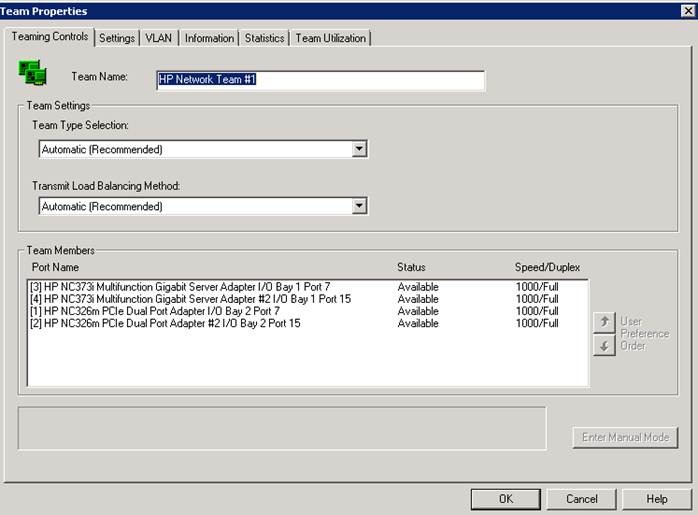
6. Change to “Settings” 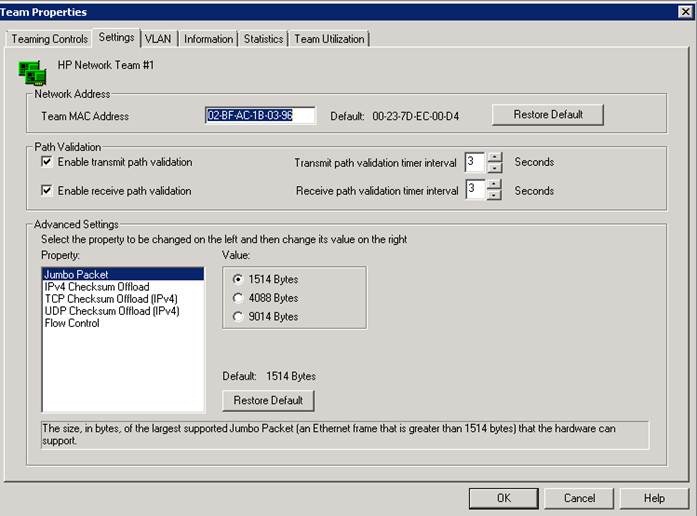
7. Replace the existing “Team MAC Address” with the one displayed in the NLB-Cluster-Configuration 
8. Save the changes with “OK” and “OK”
9. Finish NLB-Cluster-Configuration
10. Test a ping to first Cluster-Node on the original IP-Address and then on the new Cluster-IP-Address – you now should get an answer for both IP-Addresses.
11. When you now want to add a second/third/… node to the Cluster you have to do the following steps for every node:
a. Change the “Team Mac Address” to the “Mac Address of the new configured NLB-Cluster”
b. Add the Node to the NLB Cluster
12. Finished 
If you have any further questions don’t hesitate to ask.
Hello.
As many of you might have heard – the further development of Blogs on Windows Live Spaces is stopped and the customer has two options:
Download his blog to his local computer
or migrate his blog (automatically) to WordPress
I have choosen the automatic migration to WordPress – but as you can see there is a lot to do/correct for a nice looking Blog. I hopefully will be able to do this in the next days.
On some of our Windows 2008 R2 Servers we got the following event error:
Log Name: Application
Source: CAPI2
Event ID: 4107
Task Category: None
Level: Error
Keywords: Classic
User: N/A
Description:
Failed extract of third-party root list from auto update cab at: <http://www.download.windowsupdate.com/msdownload/update/v3/static/trustedr/en/authrootstl.cab (http://www.download.windowsupdate.com/msdownload/update/v3/static/trustedr/en/authrootstl.cab) > with error: A required certificate is not within its validity period when verifying against the current system clock or the timestamp in the signed file.
After a lot of searching i found this Microsoft-KB-Article which helped to fix the problem on our Servers:
http://support.microsoft.com/kb/2328240
The main steps are:
Open a cmd and enter: certutil -urlcache * delete
Open the following folders an delete the contents of the directorys – make a backup before you do that!! (Maybee not all of the folders exists on your system – than you have to do nothing for that folder)
%windir%ServiceProfilesLocalServiceAppDataLocalLowMicrosoftCryptnetUrlCacheContent
%windir%ServiceProfilesLocalServiceAppDataLocalLowMicrosoftCryptnetUrlCacheMetaData
%windir%ServiceProfilesNetworkServiceAppDataLocalLowMicrosoftCryptnetUrlCacheContent
%windir%ServiceProfilesNetworkServiceAppDataLocalLowMicrosoftCryptnetUrlCacheMetaData
%windir%System32configsystemprofileAppDataLocalLowMicrosoftCryptnetUrlCacheContent
%windir%System32configsystemprofileAppDataLocalLowMicrosoftCryptnetUrlCacheMetaDataDone – now the error message should be gone.
After installing the App-V-Server on Windows 2008 R2 i got the following error in the Application Event log:
”Certificate could not be loaded. Error code [-2146893043]. Make sure that the Network Service account has proper access to the certificate and its corresponding private key file.”
Event ID: 44955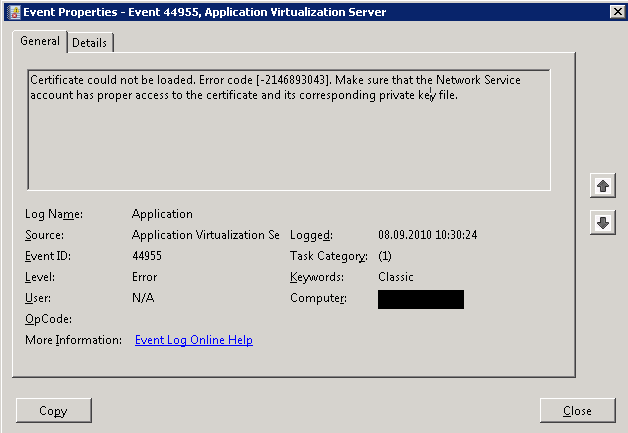
Furthermore the following error is displayed under the System Event Log:
”A fatal error occurred when attempting to access the SSL server credential private key. The error code returned from the cryptographic module is 0x8009030d. The internal error state is 10001.”
Event ID: 36870
For the encryption of the App-V Client/Server communication a Computer-Certificate of the App-V-Server is used. When you open the Services-Panel you can see that the App-V-Server-Service uses “Network Service Account”.
This account has normaly no access to the Computer-Certificate so that the two errors are displayed in the Event Log. To Fix this error you have to give the “Network Service Account” “read” priviliges on the Computer-Certificate.
To do this just open a mmc, add the “Certificate” Snapp-In and choose “Local Computer”:
Now open “Personal” => “Certificates”. Then you can see the Computer-Certificate. Right click on the Certificate and open “All Tasks” => “Manage Private Keys”.
In the permissions add “Network Service” and activate only “read” acccess:
Accept everything with “Apply” and “OK”.
When you now restart the App-V-Service the error shouldn’t be displayed any longer.
Happy Application-Virtualisation 🙂
Some days ago i installed Windows Software Update Services under Windows 2008 R2 – everything worked fine without a problem. After the first clients were connected i was really surprised – they were displayed as “Windows 0.0”. It needed some time (for the first client “initialization”) and then everything was correctly displayed 🙂 So i just wanted to show you this “funny” screenshot.

Have a nice day happy Christmas and a good New Year 😀
Here is just a little info for everyone which plans to use the „Citrix Profile Managment Service 2.1“ unter Windows 2008 64 Bit:
When we installed the Profile Management Service and a user logged on (with or without profile creation) or off the Services crashed and had to be restared. Furthermore the user profile was not handled by the Profile Management – it was handled by Windows.
There is a private Hotfix available at Citrix – so if you have this error: Open a support call at Citrix, escalate it and ask for the private Hotfix. You will then receive Citrix Profile Management 2.1.1. With this version everything will work and the service will not crash any longer.
Hello everybody.
Today i would like to write something about a really interesting "error" in a Citrix Access Gateway Enterprise Edition configuration. Our CAGEE was not able to resolve DNS names – a DNS-Server was configured but marked as down. A telnet on the console to port 53 (DNS-Port) to the DNS-Server worked. So why marks the CAGEE the DNS-Server as down and doesn’t use it? The solution is really simple: CAGEE must be able to ping the DNS-Server – then the DNS-Server is marked as up (when it’s reachable) and the CAGEE is able to resolve DNS-Names. A Citrix-technician told me that this is by design an not a bug.
Hopefully this post will help some people to save a lot of time in searching why DNS-Resolution on CAGEE.
PS:
A correct DNS-resolution is normally needed to use an ica-connection to a XenApp or XenDesktop Farm.


 Jan Hendriks Blog
