Upgrading the Nvidia Grid Card Firmware
During the last days I was able to start some testings of the new XenServer vGPU feature – thanks to my colleague Benny Tritsch for allowing me to use his Test-System with a Nvidia Grid K2 Graphics Card. During my tests I had some problems so we decided to upgrade the Firmware – well but the description of the update process looks like:
1. Create Bootable USB-Stick with Linux
2. Copy Firmware to USB stick
3. Boot from USB stick and open the update file
As you can see it’s a realy short description. Furthermore I had some problems during the update process – so I would like to share with you how I was able to upgrade the Firmware:
1. Download the Universal-USB-Installer
2. Download the Ubuntu Desktop Version (I used 12.04.4)
3. Open the Universal-USB-Installer and agree to the license 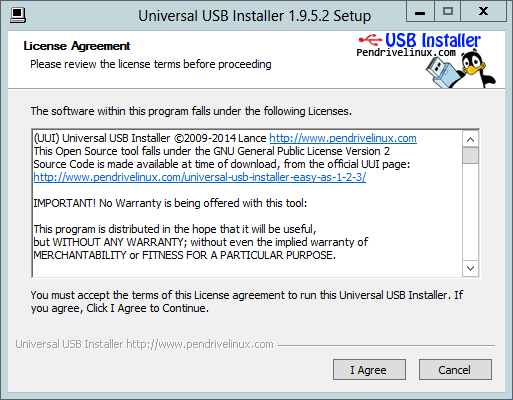
4. Choos Ubuntu as the Linux distribution, the downloaded iso and the USB-Stick to be used for creating the bootable USB stick
WARNING: All data on the USB stick will be removed! 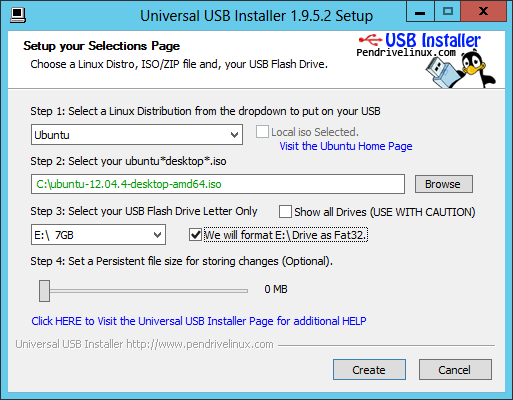
5. After starting the USB installation with “Create” you need to confirm the start. 
6. When everything is done you can see the following message: 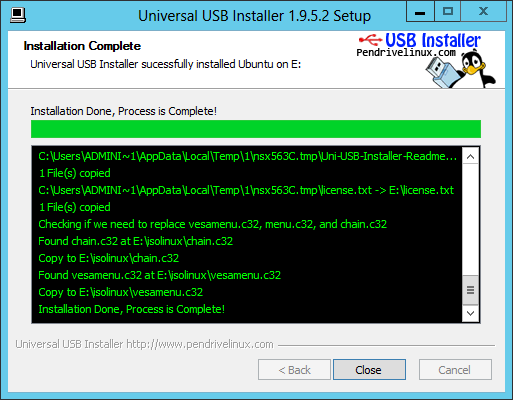
7. Now you need to copy the Firmware Files to a second USB stick. You should have two files – one named gridpro-update_R1.0.run and the other one named gridpro-update-auto_R1.0.run.
[Update]
You can also copy the files to the root directory of the first USB stick. Then they will be available on /cdrom after booting”. Thanks to @shawnbass
[/Update]
8. The next step is to boot server (which contains the Grid Card) from the just created USB stick. You don’t need to install Ubuntu – so choose "Try Ubuntu” to start Ubuntu directly from the stick. ![2014-02-20 07_47_26-DVI2USB Solo [D3U51862] - 1440x900 60.2 Hz](https://jhmeier.com/wp-content/uploads/2014/02/2014-02-20-07_47_26-dvi2usb-solo-d3u51862-1440x900-60-2-hz.png "2014-02-20 07_47_26-DVI2USB Solo [D3U51862] - 1440x900 60.2 Hz")
9. After Ubuntu is started you attach the second USB stick and copy the Firmware files to Documents. ![2014-02-20 08_34_10-DVI2USB Solo [D3U51862] - 1440x900 60.2 Hz](https://jhmeier.com/wp-content/uploads/2014/02/2014-02-20-08_34_10-dvi2usb-solo-d3u51862-1440x900-60-2-hz.png "2014-02-20 08_34_10-DVI2USB Solo [D3U51862] - 1440x900 60.2 Hz")
10. Open the properties of both files and change all “Access” types to “Read and write”. Furthermore activate “Allow executing files as a program”. ![2014-02-20 08_44_04-DVI2USB Solo [D3U51862] - 1440x900 60.2 Hz](https://jhmeier.com/wp-content/uploads/2014/02/2014-02-20-08_44_04-dvi2usb-solo-d3u51862-1440x900-60-2-hz.png "2014-02-20 08_44_04-DVI2USB Solo [D3U51862] - 1440x900 60.2 Hz")
11. Time to switch to the console – press the upper left icon and enter “Ter” to find the “Terminal”. ![2014-02-20 08_16_36-DVI2USB Solo [D3U51862] - 1440x900 60.2 Hz](https://jhmeier.com/wp-content/uploads/2014/02/2014-02-20-08_16_36-dvi2usb-solo-d3u51862-1440x900-60-2-hz.png "2014-02-20 08_16_36-DVI2USB Solo [D3U51862] - 1440x900 60.2 Hz")
12. Inside the Terminal you first switch to the root account (sudo su) and then you open the folder Documents (cd Documents). To start the update you enter “./gridpro-update_R1.0.run” (without quotation marks). Alternatively you can enter “./gridpro-update-auto_R1.0.run”. The second one runs an autoupdate without userinteraction while the first asks you for every update if you would like to install the update. ![2014-02-20 08_45_11-DVI2USB Solo [D3U51862] - 1440x900 60.2 Hz](https://jhmeier.com/wp-content/uploads/2014/02/2014-02-20-08_45_11-dvi2usb-solo-d3u51862-1440x900-60-2-hz.png "2014-02-20 08_45_11-DVI2USB Solo [D3U51862] - 1440x900 60.2 Hz")
13. If you didn’t choose the Auto-Update-Version confirm the updates (dependen on the installed version it’s possible that you are asked more than once) with “y”.![2014-02-20 08_45_31-DVI2USB Solo [D3U51862] - 1440x900 60.2 Hz](https://jhmeier.com/wp-content/uploads/2014/02/2014-02-20-08_45_31-dvi2usb-solo-d3u51862-1440x900-60-2-hz.png "2014-02-20 08_45_31-DVI2USB Solo [D3U51862] - 1440x900 60.2 Hz")
14. After all updates are installed the following message is displayed:
Update successful.
No more matches found. ![2014-02-20 08_47_58-DVI2USB Solo [D3U51862] - 1440x900 60.2 Hz](https://jhmeier.com/wp-content/uploads/2014/02/2014-02-20-08_47_58-dvi2usb-solo-d3u51862-1440x900-60-2-hz.png "2014-02-20 08_47_58-DVI2USB Solo [D3U51862] - 1440x900 60.2 Hz")
15. That’s it – shut down Ubuntu – remove the USB sticks and start your normal OS.
PS:
Until now I only found the Firmware Updates on the IBM-Website….

 Jan Hendriks Blog
Thank you for posting this, when I was presented with the same exact lack of detail in the Nvidia notes on how to upgrade the GRID bios, I was a bit perplexed on how exactly to approach this without just a bunch of trial and error. This saves me a lot of time!
When I refer to the post. I can login ubuntu desktop. But when I run the update.run. There was an error. The ubuntu can find any nvidia card in my DL380. When I run “nvidia-detector”. Show “none”. So I can not update the flash successfully.