After a long time of waiting Citrix released Receiver 4.2. This release brings back functionality to easily integrate Published Applications into the Startmenu known from the Receiver Enterprise. There are two ways available to configure the new Options.
- Parameters during the installation and Registry entries
- Group Policy with imported ADM files
With both you can disable the SelfServiceStore, configure where and how Startmenu / Desktop Icons are created and if they are removed at logoff / exit.
Installation Parameters / Registry Setting
To disable the SelfServiceStore you must start the installation with the parameter /SELFSERVICEMODE=False . Furthermore it’s a good idea to also enable SingleSignOn ( /includeSSON) and configure the Store ( STORE0=”JHMeier;https://storefront.jhmeier.local/Citrix/Store/discovery;on;JHM Store”) through Parameters . Otherwise the user needs to manually configure the Store and SingleSignOn wouldn’t work.

CitrixReceiver.exe /includeSSON /SELFSERVICEMODE=False STORE0=”JHMeier;https://storefront.jhmeier.local/Citrix/Store/discovery;on;JHM Store”
If you need to remove the created shortcuts at logoff or exit of the Receiver you must configure the following Registry-Keys:
Remove Shortcuts at Logoff:
HKML\SOFTWARE\Citrix\Dazzle
RemoveAppsOnLogOff
Value = True
Remove Shortcuts at Receiver Exit
HKML\SOFTWARE\Citrix\Dazzle
RemoveAppsOnExit
Value = True
Group Policy with imported ADM files
After installing the Receiver 4.2 you find updated ADM files in the folder C:\Program Files(x86)\Citrix\ICA Client\Configuration”. Open an existing GPO or create a new one. Open Computer Configuration, right click on Administrative Templates and choose Add/Remove Templates…
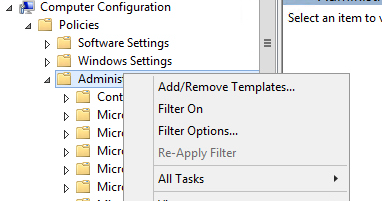
For this configuration you need to add the icaclient.adm file – but you can also add the other available adm files. 
After adding the file(s) open the following path:
Computer Configuration => Administrative Templates => Classic Administrative Tempaltes (ADM) => Citrix Components => Citrix Receiver => SelfService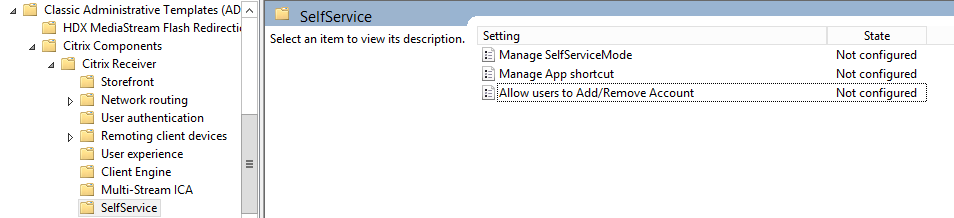
To disable the SelfServiceStore disable the setting Manage SelfServiceMode 
Enable the Manage App shortcut setting to configure the following settings:
- Startmenu Directory
- Desktop Directory
- Disable Startmenu Shortcut
- Enable Desktop Shortcut
- Disable Categorypath
- Remove apps on Logoff
- Remove apps on Exit

The store can be configured under Citrix Receiver => Storefront.
Results
After installing the Receiver with Parameters or configuring it through GPO Shortcuts are automatically published to the Startmenu. Furthermore the SelfServiceStore is removed – it is not possible to open it. If you right click the Receiver the following options are displayed:

Instead of Open only Refresh is available to check if new apps are published for the user.
Known limitation
There is one known limitation of this solution. If you enable removing the Shortcuts at logoff or exit the app enumeration after every logon is slow. To fix this two workarounds are available.
The first is to add the following registry setting:
HKLM\Software\Citrix\Dazzle
Name = ReuseStubs
Type = REG_SZ
Value = true
The other one is to create Stub-Files on a Share. These files are necessary to start a published application. To create them start a Receiver and subscribe all published applications. The files are created under %Appdata%\Citrix\SelfService. Copy the *.exe files to your share. Furthermore you need to create the following registry settings (If it’s a 64Bit system the Path is HKLM\SOFTWARE\Wow6432Node\Citrix\Dazzle):
HKLM\Software\Citrix\Dazzle
Name = CommonStubDirectory
Type = REG_SZ
Value = PATHTOSHARE (e.g. \\server\citrixstubs)HKLM\Software\Citrix\Dazzle
Name = CopyStubsFromCommonStubDirectory
Type = REG_SZ
Value = true
After a restart of the Receiver the settings are active and the enumeration should be faster.
During my last Citrix Provisioning Server deployments I had an interesting problem. The Windows 2012R2 Master Template always stopped at the Boot screen. This happened even before it was converted into a PVS Device (Disk) nor the Target Device Tools had been installed.
The VM was running on VMWare ESXi 5.5 and we used Citrix Provisioning Server 7.6. After changing the first boot device to Network – though that an initial connection to Citrix PVS happened – the boot stopped while showing the Windows Boot screen. Although we were still booting from the local hard drive – so it didn’t make any sense why this was happening. 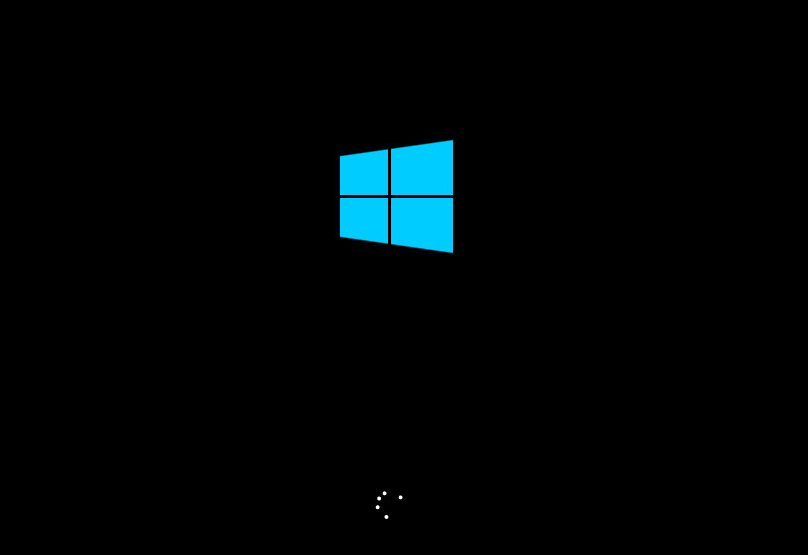
After some more testing we discovered that this was not happening with all Windows 2012R2 VMs – only with new deployed ones. Ok let’s check where the difference between the VMs are.
New VMs where running in the ESXi Compatibility mode 5.5 (VM-Version 10). 
While old VMs where still running in the ESXi Compatibility mode 5.0 (VM-Version 8). 
After checking what has changed we saw the new VMs were using a SATA-Controller for the CD-/DVD-Drive instead of an IDE-Controller.
Old VM (Version 8): 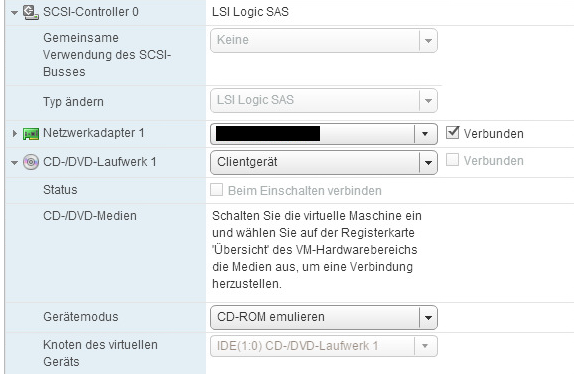
New VM (Version 10): 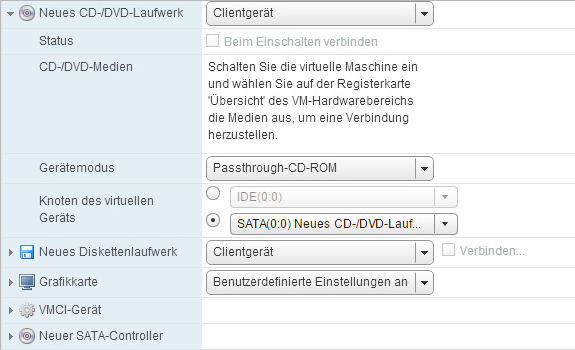
Though we removed the CD-/DVD-Drive and SATA Controller from a new VM and added the CD-/DVD-Drive using an “old” IDE-Port. 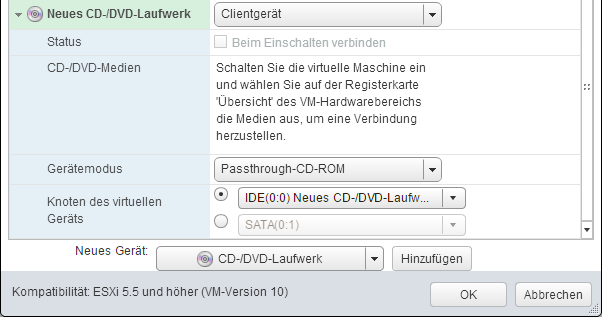
After this change the VM was booting without any problems. 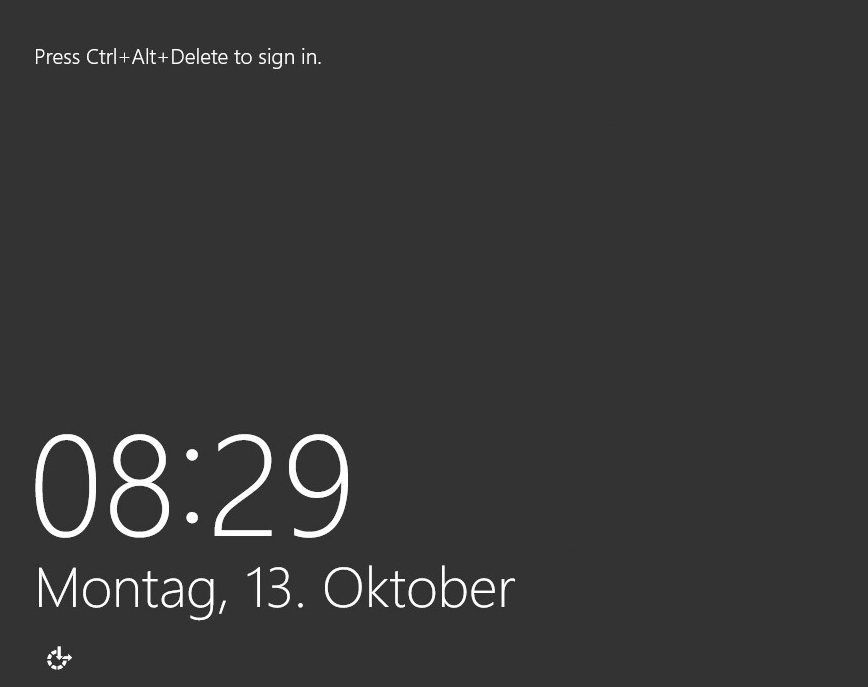
I don’t know what causes this problem – but hopefully it will be fixed from either Citrix or VMWare in one of their next versions.
During the last days I tested the Upgrade from XenDesktop 7.5 to XenDesktop 7.6. I found some interesting “Issues” during the upgrade which seem to be not documented.
Upgrading StoreFront on a separate System
If you upgrade StoreFront on a separate Server and use the Upgrade Wizard you receive the following message: 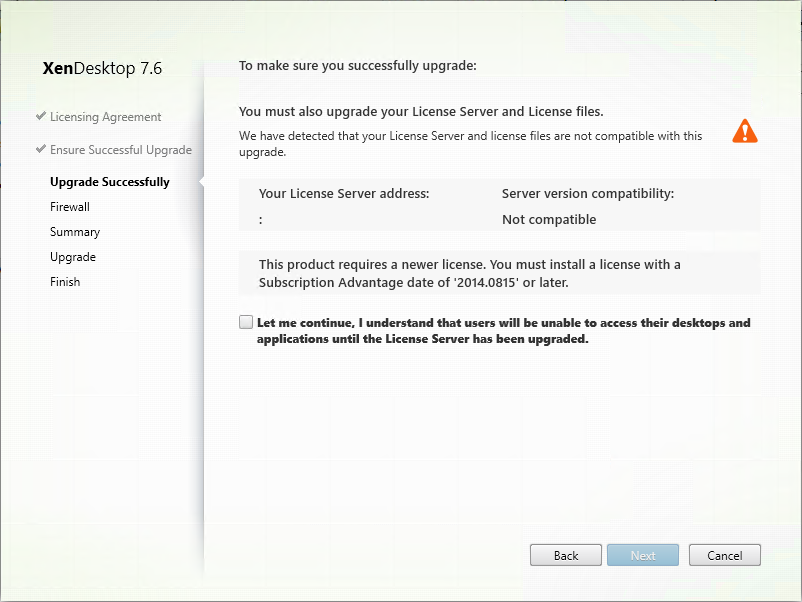
As you can see the Upgrade process try’s to check something which is not available on a standalone StoreFront system. Luckily you can ignore the warning and continue with your installation. Actually StoreFront even doesn’t check the licenses later – so even if no licenses are available StoreFront works.
Upgrading Citrix License Server on a separate System
The more confusing message is shown if you use the Upgrade Wizard to upgrade the Citrix License Server which is not installed on a Delivery Controller. If you try to upgrade the following message is displayed:

This product requires a newer license. You must install a license with a Subscription Advantage date of “2014.0815” or later.
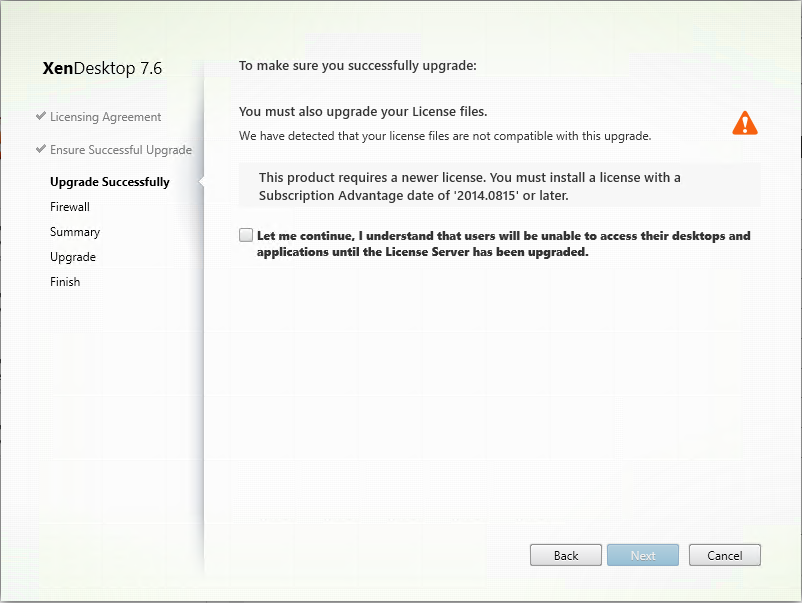
Even if you have licenses with a Subscription Advantage date after “2014.0815” the message is displayed. Luckily you can also safely ignore this message (of course only if your Subscription Advantage date is after 2014.0815) – your users will still be able to access their Desktops and Applications.
One of the biggest challenges in a lot of migrations to Citrix Receiver 4.x (and XenDesktop / XenApp 7.x) is the (missing) function to automatically fill the users start menu. In the past it was quite easy to push all published applications for the user into his start menu using the Citrix Receiver Enterprise (aka. Online Plugin). Citrix decided to stop the development of the Citrix Receiver Enterprise and fully switched to the Citrix Receiver.
But how can we now automatically fill the user start menu without any user interaction?
First of all you need to make sure that the Receiver Single-Sign-On is working. If you don’t know how to configure this read the article “Citrix Receiver Single-Sign-On (Pass-through Authentication) does not work with StoreFront”.
Also it is necessary to configure the Receiver automatically with your StoreFront Store. You can either achieve this by creating a GPO (with the Receiver adm) or using another command line parameter (next to /includeSSON for Single-Sign-On). To use a GPO import the Receiver ADM-File into the GPO. You can find the ADM-File on a computer with an installed Receiver in the following path:
C:\Program Files (x86)\Citrix\ICA Client\Configuration (or C:\Program Files\….)
After importing the icaclient.adm you find the following settings inside the GPO:
Computer Configuration => Administrative Templates => Classic Administrative Templates (ADM) => Citrix Receiver => Storefront => Storefront Accounts List 
Change the setting to enable and enter the Store (account) details under “Show”. 
Enter your StoreFront Store in the following format:
STORE NAME;STOREURL;ON;STORE DESCRIPTION 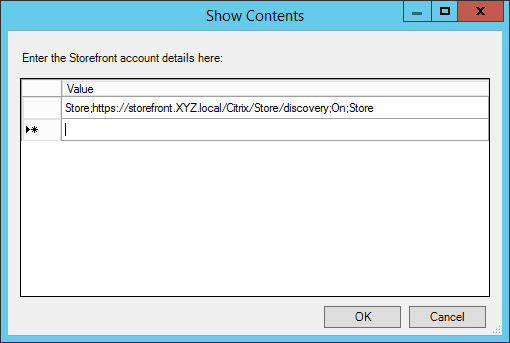
Alternatively you can add the following parameter to your Receiver-Installation:
STORE0="STORE NAME;STORE URL;On;STORE DESCRIPTION"
The next step is to add the following registry keys under the path HKLM\SOFTWARE\Wow6432Node\Citrix\Dazzle (if it’s a 32Bit-System without Wow6432Node):
| Name | Type | Data |
| InitialRefreshMinMs | REG_SZ | 1 |
| InitialRefreshMaxMs | REG_SZ | 1 |
| DontWarnOfRemovedResources | REG_SZ | True |
The last one (DontWarnOfRemovedResources) is optional – if you activate this a user is not informed if one of his applications is removed.
For adding the keys the following commands can be used:
REG ADD HKLM\SOFTWARE\Wow6432Node\Citrix\Dazzle /f /v InitialRefreshMinMs /t REG_SZ /d 1
REG ADD HKLM\SOFTWARE\Wow6432Node\Citrix\Dazzle /f /v InitialRefreshMaxMs /t REG_SZ /d 1
REG ADD HKLM\SOFTWARE\Wow6432Node\Citrix\Dazzle /f /v DontWarnOfRemovedResources /t REG_SZ /d True
Don’t forget to change the path on a 32Bit-System. 
Now you need to create a new Shortcut in the Startup Folder. With this Shortcut the Receiver automatically connects to Storefront and receives the subscribed applications of the user after he logged in. For every application a Shortcut is created in the Start Menu. The Shortcut gets the following settings:
Target:
"C:\Program Files (x86)\Citrix\SelfServicePlugin\SelfService.exe" -logon -poll
Start in:
"C:\Program Files (x86)\Citrix\SelfServicePlugin\"

If your users now log in not all of their available applications won’t be published to the Start Menu. The reason for this is that the user first needs to subscribe all of his available applications. The good thing is: You can also automate this 
Switch to your Delivery Controller and start the Desktop Studio. Now open “Delivery Groups => Applications” and change the Settings of one Application. You need to change the “Description and keywords”. Either enter
KEYWORDS:mandatory
or enter
KEYWORDS:auto
In this situation both keywords have the same effect – after the user logs on and the SelfService is triggered with –logon and –poll every application is subscribed for the user. Of course only applications with a configured Keyword are subscribed.
The difference between the keywords is that with “auto” the application is only once subscribed – if the user removes it from his applications inside the Receiver it stays removed. If the keyword is “mandatory” the application is subscribed with every user logon. Don’t forget to enter the Keyword for every application which should be automatically published to the Start Menu.
That’s it – now Applications are automatically pushed to the user start menu after he logged in – if anything is unclear feel free to contact me.
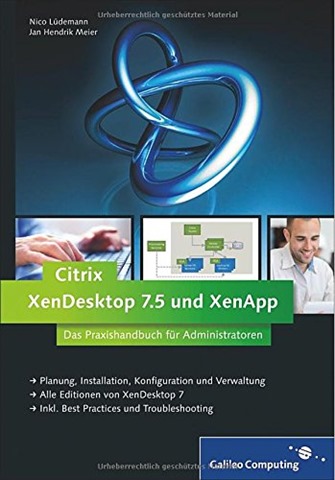
In the last week I finally received a copy of the book about Citrix XenDesktop and XenApp 7.5 which Nico Luedemann and I have written.
It’s an absolutely awesome feeling to see the printed book after a lot of work (and time of waiting). I can only suggest everyone to try and write his own book – it’s a really interesting experience.
A big thank you goes to my family for beeing so patient with me while I was spending such a lot of time for writing the book.
Many thanks also go to Sebastian Kestel from Galileo Computing – thanks for the good collaboration during the whole project.
I hope you all enjoy reading the book – if you have any questions feel free to contact me. The book is published by Galileo Computing. You can buy it as a print copy or ebook.
I have updated the XenDesktop / XenApp 7.x PowerShell Documentation Script. Next to a small bugfix I have added the Documentation of the Hosting-Connections. Thus the following things are now documented:
- General Site Informations
- Logging Settings
- Licensing
- Controllers
- Databases
- Administrators
- Machine Catalogs
- Applications
- Hosting
- Storefront Servers (not the StoreFront Config)
- App-V Server
The following main thing is missing:
- Policies
Files
The script is divided into two files:
jhmeier-xd7-xa-7.x-documentation-v04.ps1
en-US.xml
The first file is the script himself, while the second file is for an easy modification of the script-output for other languages.
Script Usage
To use the scripts a few prerequisites must be fulfilled:
- XenDesktop / XenApp PowerShell Extensions
- Microsoft Word
- XenDesktop / XenApp Admin Account (with at least Read privileges)
- PowerShell Execution Policy
- The script and the language file need to be in the same location.
That should it be – just execute the script. The script starts and creates an (invisible) Word-Document in the background. When it’s finished it saves the document with the name XD-XA-SITE-NAME.docx in the script folder.
Parameters
The script supports (but doesn’t need) the following parameters:
-TextLanguage en-US
If you don’t want to have an output in the default language (English) you need to define the wanted language. Attention: Therefore you need a separate language xml file – see Language Files.
-DeliveryControllerAddress DeliveryControllerFQDN
If you run the script without this parameter it tries to connect to localhost – but if that’s not a Delivery Controller you need to specify it
Language Files
If you run the script – without creating a language specific xml file – the output looks like this:
Description: Description in the System language
If that’s ok for you – you have nothing to do – but if you prefer a complete output in your language like (in German):
Beschreibung: Beschreibung in Deutsch
you need to copy the file en-US.xml and rename it to e.g. de-DE.xml. After that open the new file with an editor of your choice. You now find a lot of entries which look like the following:
<Description>Description</Description>
Now you need to translate the middle for every necessary line so that it looks like this:
<Description>Beschreibung</Description>
License
The script is published under the GPL.
Download
jhmeier-xd-xa-7.x-documentation-v04.zip
Feedback
Any feedback would be really welcome – if you have something to make the script better or have any questions – feel free to contact me.
I have written another article for the print magazine IT-Administrator. This time it’s an article about Mobile Device and Mobile Application Management with Citrix XenMobile. You can find the full article in the May edition.

Mobile Geräte drängen in die Unternehmen. Kein Wunder, dass die großen Software-Anbieter sich immer stärker diesem Thema widmen. Seit der Übernahme von Zenprise hat sich auch bei Citrix im Bereich Mobile viel getan. So konnte Citrix das Mobile Device Management ursprünglich nicht bedienen. Im neuen XenMobile ist dies nun möglich. Das ehemalige Cloud Gateway hat Citrix gleich mit hineingepackt. Doch welche Editionen enthalten welche Funktionen und wofür benötigen Sie die einzelnen Komponenten? Diese Fragen klären wir für Sie in diesem Beitrag.
Hi everyone,
I think you all know the absolute fantastic PowerShell Documentation Scripts for Citrix XenApp (up to 6.5) and PVS created by Carl Webster. With these scripts it’s absolutely easy to create a Documentation of a XenApp- or PVS-Farm. Unfortunately Carl didn’t create (or release) a documentation script for XenDesktop / XenApp 7.x yet, so I decided to create my own script. It’s not comparable (and actually that’s not my intention) to Carls scripts but documents the following things (in a more basic way):
- General Site Informations
- Logging Settings
- Licensing
- Controllers
- Databases
- Administrators
- Machine Catalogs
- Applications
- Storefront Servers (not the StoreFront Servers)
- App-V Server
The following main things are missing:
- Policies
- Hosting
The script is divided into two files:
jhmeier-xd7-xa-7.x-documentation-v03.ps1
en-US.xml
The first file is the script himself, while the second file is for an easy modification of the script-output for other languages.
Script Usage
To use the scripts a few prerequisites must be fulfilled:
- XenDesktop / XenApp PowerShell Extensions
- Microsoft Word
- XenDesktop / XenApp Admin Account (with at least Read privileges)
- PowerShell Execution Policy
- The script and the language file need to be in the same location.
That should it be – just execute the script. The script starts and creates an (invisible) Word-Document in the background. When it’s finished it saves the document with the name XD-XA-SITE-NAME.docx in the script folder.
Parameters
The script supports (but doesn’t need) the following parameters:
-TextLanguage en-US
If you don’t want to have an output in the default language (English) you need to define the wanted language. Attention: Therefore you need a separate language xml file – see Language Files.
-DeliveryControllerAddress DeliveryControllerFQDN
If you run the script without this parameter it tries to connect to localhost – but if that’s not a Delivery Controller you need to specify it
Language Files
If you run the script – without creating a language specific xml file – the output looks like this:
Description: Description in the System language
If that’s ok for you – you have nothing to do – but if you prefer a complete output in your language like (in German):
Beschreibung: Beschreibung in Deutsch
you need to copy the file en-US.xml and rename it to e.g. de-DE.xml. After that open the new file with an editor of your choice. You now find a lot of entries which look like the following:
<Description>Description</Description>
Now you need to translate the middle for every necessary line so that it looks like this:
<Description>Beschreibung</Description>
License
The script is published under the GPL.
Download
jhmeier-xd-xa-7.x-documentation-v03.zip
Feedback
Any feedback would be really welcome – if you have something to make the script better or have any questions – feel free to contact me.
That’s it – hopefully the script is useful for some of you.
During the last days I was able to start some testings of the new XenServer vGPU feature – thanks to my colleague Benny Tritsch for allowing me to use his Test-System with a Nvidia Grid K2 Graphics Card. During my tests I had some problems so we decided to upgrade the Firmware – well but the description of the update process looks like:
1. Create Bootable USB-Stick with Linux
2. Copy Firmware to USB stick
3. Boot from USB stick and open the update file
As you can see it’s a realy short description. Furthermore I had some problems during the update process – so I would like to share with you how I was able to upgrade the Firmware:
1. Download the Universal-USB-Installer
2. Download the Ubuntu Desktop Version (I used 12.04.4)
3. Open the Universal-USB-Installer and agree to the license 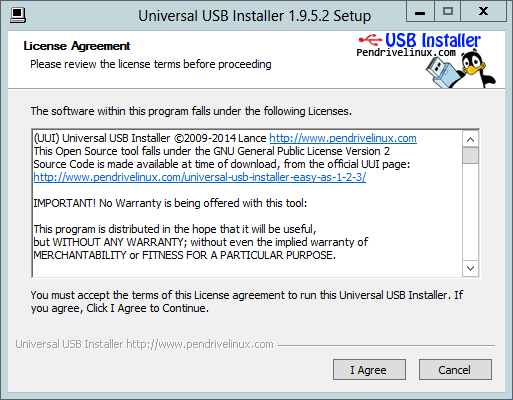
4. Choos Ubuntu as the Linux distribution, the downloaded iso and the USB-Stick to be used for creating the bootable USB stick
WARNING: All data on the USB stick will be removed! 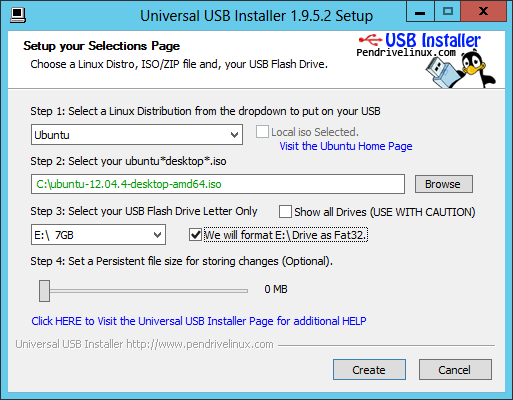
5. After starting the USB installation with “Create” you need to confirm the start. 
6. When everything is done you can see the following message: 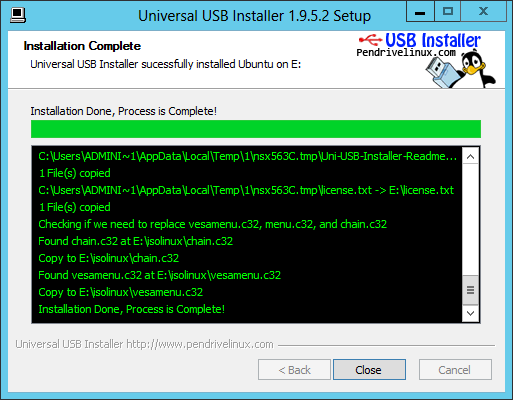
7. Now you need to copy the Firmware Files to a second USB stick. You should have two files – one named gridpro-update_R1.0.run and the other one named gridpro-update-auto_R1.0.run.
[Update]
You can also copy the files to the root directory of the first USB stick. Then they will be available on /cdrom after booting”. Thanks to @shawnbass
[/Update]
8. The next step is to boot server (which contains the Grid Card) from the just created USB stick. You don’t need to install Ubuntu – so choose "Try Ubuntu” to start Ubuntu directly from the stick. ![2014-02-20 07_47_26-DVI2USB Solo [D3U51862] - 1440x900 60.2 Hz](https://jhmeier.com/wp-content/uploads/2014/02/2014-02-20-07_47_26-dvi2usb-solo-d3u51862-1440x900-60-2-hz.png "2014-02-20 07_47_26-DVI2USB Solo [D3U51862] - 1440x900 60.2 Hz")
9. After Ubuntu is started you attach the second USB stick and copy the Firmware files to Documents. ![2014-02-20 08_34_10-DVI2USB Solo [D3U51862] - 1440x900 60.2 Hz](https://jhmeier.com/wp-content/uploads/2014/02/2014-02-20-08_34_10-dvi2usb-solo-d3u51862-1440x900-60-2-hz.png "2014-02-20 08_34_10-DVI2USB Solo [D3U51862] - 1440x900 60.2 Hz")
10. Open the properties of both files and change all “Access” types to “Read and write”. Furthermore activate “Allow executing files as a program”. ![2014-02-20 08_44_04-DVI2USB Solo [D3U51862] - 1440x900 60.2 Hz](https://jhmeier.com/wp-content/uploads/2014/02/2014-02-20-08_44_04-dvi2usb-solo-d3u51862-1440x900-60-2-hz.png "2014-02-20 08_44_04-DVI2USB Solo [D3U51862] - 1440x900 60.2 Hz")
11. Time to switch to the console – press the upper left icon and enter “Ter” to find the “Terminal”. ![2014-02-20 08_16_36-DVI2USB Solo [D3U51862] - 1440x900 60.2 Hz](https://jhmeier.com/wp-content/uploads/2014/02/2014-02-20-08_16_36-dvi2usb-solo-d3u51862-1440x900-60-2-hz.png "2014-02-20 08_16_36-DVI2USB Solo [D3U51862] - 1440x900 60.2 Hz")
12. Inside the Terminal you first switch to the root account (sudo su) and then you open the folder Documents (cd Documents). To start the update you enter “./gridpro-update_R1.0.run” (without quotation marks). Alternatively you can enter “./gridpro-update-auto_R1.0.run”. The second one runs an autoupdate without userinteraction while the first asks you for every update if you would like to install the update. ![2014-02-20 08_45_11-DVI2USB Solo [D3U51862] - 1440x900 60.2 Hz](https://jhmeier.com/wp-content/uploads/2014/02/2014-02-20-08_45_11-dvi2usb-solo-d3u51862-1440x900-60-2-hz.png "2014-02-20 08_45_11-DVI2USB Solo [D3U51862] - 1440x900 60.2 Hz")
13. If you didn’t choose the Auto-Update-Version confirm the updates (dependen on the installed version it’s possible that you are asked more than once) with “y”.![2014-02-20 08_45_31-DVI2USB Solo [D3U51862] - 1440x900 60.2 Hz](https://jhmeier.com/wp-content/uploads/2014/02/2014-02-20-08_45_31-dvi2usb-solo-d3u51862-1440x900-60-2-hz.png "2014-02-20 08_45_31-DVI2USB Solo [D3U51862] - 1440x900 60.2 Hz")
14. After all updates are installed the following message is displayed:
Update successful.
No more matches found. ![2014-02-20 08_47_58-DVI2USB Solo [D3U51862] - 1440x900 60.2 Hz](https://jhmeier.com/wp-content/uploads/2014/02/2014-02-20-08_47_58-dvi2usb-solo-d3u51862-1440x900-60-2-hz.png "2014-02-20 08_47_58-DVI2USB Solo [D3U51862] - 1440x900 60.2 Hz")
15. That’s it – shut down Ubuntu – remove the USB sticks and start your normal OS.
PS:
Until now I only found the Firmware Updates on the IBM-Website….
Today I would like to describe you an interesting problem I had during my last receiver deployments. The start of the installation always failed with the message:
The configuration manager cannot be initialized.

After removing all old Receiver Installations the error still occurred. I cleaned up the registry and file system and removed everything which contained Citrix – but still the same error.
The next step was to use the Citrix Receiver Clean-Up Utility (CTX137494) – normally this tool removes everything related to old Receiver or Online Plugin Versions. But this time this didn’t fix the problem – after using the tool the same error was displayed like before. Time for a more intensive debug and check with procmon which files and registry keys are accessed during the setup start. And there it was – the setup tried to access the following registry key:
HKEY_CLASSES_ROOT\Installer\UpgradeCodes\9B123F490B54521479D0EDD389BCACC1
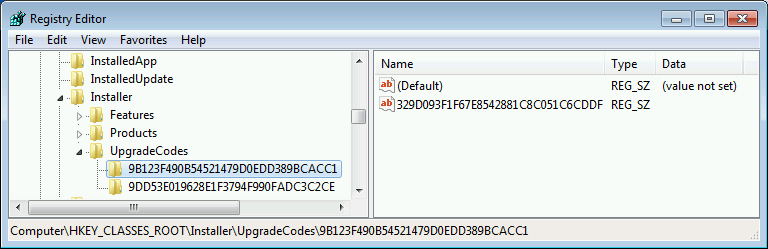
I removed the complete registry key and tried again to install the receiver – this time the setup started without any error messages and I was able to install the receiver.



 Jan Hendriks Blog