In one of my last projects I had an interesting problem with Storefront. Neither the initial configuration replication nor following ones worked. 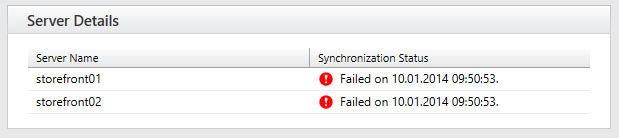
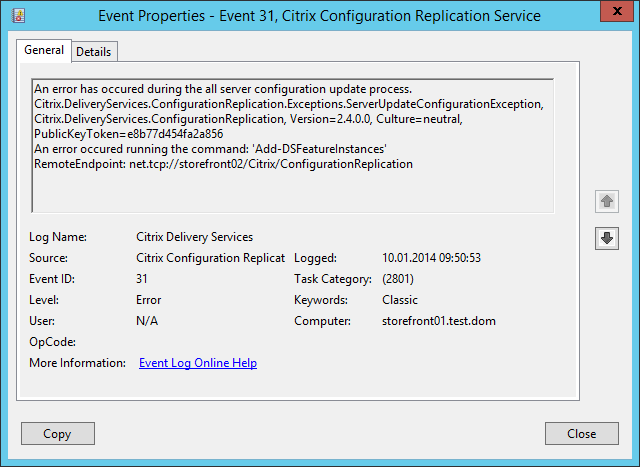
On the first StoreFront Server the following error was logged:
Log Name: Citrix Delivery Services
Source: Citrix Configuration Replication Service
Event ID: 31An error has occured during the all server configuration update process.
Citrix.DeliveryServices.ConfigurationReplication.Exceptions.ServerUpdateConfigurationException, Citrix.DeliveryServices.ConfigurationReplication, Version=2.4.0.0, Culture=neutral, PublicKeyToken=e8b77d454fa2a856
An error occured running the command: ‘Add-DSFeatureInstances’
RemoteEndpoint: net.tcp://storefront02/Citrix/ConfigurationReplication
On the second Server I found the following three errors:
Log Name: Citrix Delivery Services
Source: Citrix Configuration Replication Service
Event ID: 1An error occured running the command: ‘Add-DSFeatureInstances’
Exception of type ‘Citrix.DeliveryServices.Framework.Web.Deployment.Exceptions.WebApplicationAlreadyExists’ was thrown.
Citrix.DeliveryServices.PowerShell.Command.Runner.Exceptions.PowerShellExecutionException, Citrix.DeliveryServices.PowerShell.Command.Runner, Version=2.4.0.0, Culture=neutral, PublicKeyToken=e8b77d454fa2a856
An error occured running the command: ‘Add-DSFeatureInstances’
Log Name: Citrix Delivery Services
Source: Citrix Configuration Replication Service
Event ID: 12Failure to notify of configuration update.
Citrix.DeliveryServices.PowerShell.Command.Runner.Exceptions.PowerShellExecutionException, Citrix.DeliveryServices.PowerShell.Command.Runner, Version=2.4.0.0, Culture=neutral, PublicKeyToken=e8b77d454fa2a856
An error occured running the command: ‘Add-DSFeatureInstances’
at Citrix.DeliveryServices.PowerShell.Command.Runner.PowerShellCommandRunner.RunCommand(IPowerShellCommand command)
at Citrix.DeliveryServices.ConfigurationReplication.PowerShell.ConfigurationWriterBL.AddFeatureInstances(List`1 instancesToCreate, List`1 featureClasses)
at Citrix.DeliveryServices.ConfigurationReplication.BL.Synchronisation.ConfigurationSync.SynchroniseInstances(FeatureInstancesInfo instances)
at Citrix.DeliveryServices.ConfigurationReplication.BL.Synchronisation.ConfigurationSyncController.Update(Guid primarySynchronisationLevel)
at Citrix.DeliveryServices.ConfigurationReplication.BL.Synchronisation.ConfigurationSyncController.UpdateHostConfiguration(Guid synchronisationLevel, IConfigurationSync sync, IConfigurationReplication proxy, IPersistServiceState store)
at Citrix.DeliveryServices.ConfigurationReplication.BL.Synchronisation.ConfigurationSyncController.UpdateHostConfiguration(Guid synchronisationLevel, String proxyEndpoint)
at Citrix.DeliveryServices.ConfigurationReplication.WCF.ConfigurationReplication.<>c__DisplayClass3.<BeginUpdateConfiguration>b__1(Object asr)
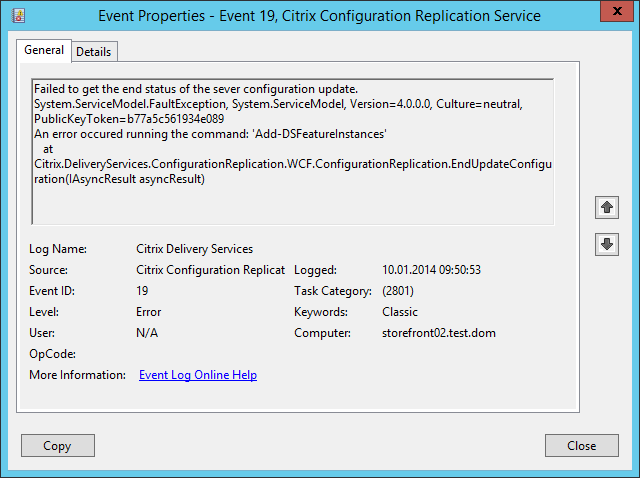
Log Name: Citrix Delivery Services
Source: Citrix Configuration Replication Service
Date: 10.01.2014 09:50:53
Event ID: 19Failed to get the end status of the sever configuration update.
System.ServiceModel.FaultException, System.ServiceModel, Version=4.0.0.0, Culture=neutral, PublicKeyToken=b77a5c561934e089
An error occured running the command: ‘Add-DSFeatureInstances’
at Citrix.DeliveryServices.ConfigurationReplication.WCF.ConfigurationReplication.EndUpdateConfiguration(IAsyncResult asyncResult)


If you google for problems like these you find hints like:
- Delete some specific files on the secondary StoreFront Server and synchronize again
- Remove StoreFront from the secondary StoreFront Server – don’t forget do manually delete C:\inetpub\wwwroot\Citrix and C:\ProgramFiles\Citrix\Receiver StoreFront – Remove second StoreFront Server from StoreFront Group – Reinstall second StoreFront Server and join again
- Uninstall StoreFront on both Servers – remove folders mentioned in two – reinstall StoreFront and create a new StoreFront Group
None of them worked for us – but if you read the first Event on the secondary StoreFront Server carefully you already get a got hint why the replication fails:
‘Citrix.DeliveryServices.Framework.Web.Deployment.Exceptions.WebApplicationAlreadyExists’
Though we also checked the StoreFront Log-Files in C:\ProgramFiles\Citrix\Receiver StoreFront\Admin\logs and then we found an interesting entry in the file Add-DSWebReceiver :
There is already a web app at 1 /Citrix/StoreWeb
WebReceiverInstance:Deploy failed due to exception: Citrix.DeliveryServices.Framework.Web.Deployment.Exceptions.WebApplicationAlreadyExists: Exception of type ‘Citrix.DeliveryServices.Framework.Web.Deployment.Exceptions.WebApplicationAlreadyExists’ was thrown.
Ok – we removed StoreFront (on the second Server) again completely (with all files) and opened the IIS-Management-Console: 
What’s that? StoreFront is removed but there’s still a “StoreWeb” available? After checking the file-system – there was no StoreWeb availble – we removed the folder in the IIS console.
After reinstalling StoreFront and joining to the StoreFront Group the configuration synchronization worked without any problems. 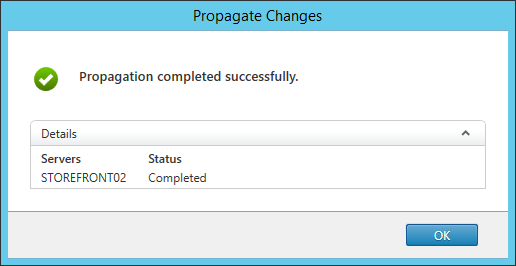
Hope this helps some of you if you have problems with your StoreFront synchronization.
Just one more hint at the end – StoreFront also supports a more intensive verbose logging. The usage is described in CTX139592.
In one of my Citrix XenMobile implementations I had an interesting problem with WorxMail for iOS. If we tried to connect WorxMail to the internal Exchange Servers we always received the error:
Not trusted SSL Certificate. 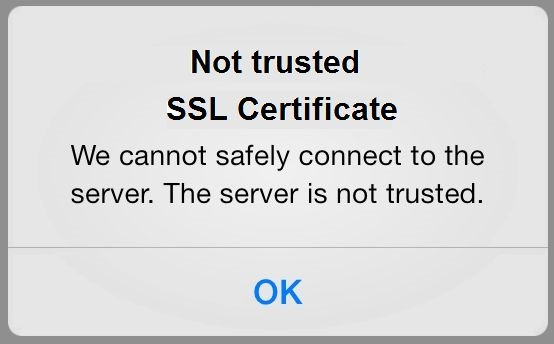
We started to check the connections but everything was working fine. Also we didn’t have any problem with WorxMail for Android. For the connection we used the STA-Method and not a Micro VPN. After checking everything deeper we found that WorxMail still was initiating a direct connection to the internal Exchange-Server through the NetScaler Gateway. Of course the internal servers used a certificate from the internal Root-Ca. After importing the Root-CA-Certificate into our iOS-Devices everything was working fine.
Actually that was not really a solution for us – deploying the internal Root-CA-Certificate to BYOD devices would have been a lot of work (people with BYOD devices don’t want to connect their device to the companies owned MDM-Solution for an automatic deployment). We started to look for other solutions and luckily Citrix just published the new WorxMail Version 1.3. After importing this version into the AppController a new Application Policy was available:
Accept all SSL certificates
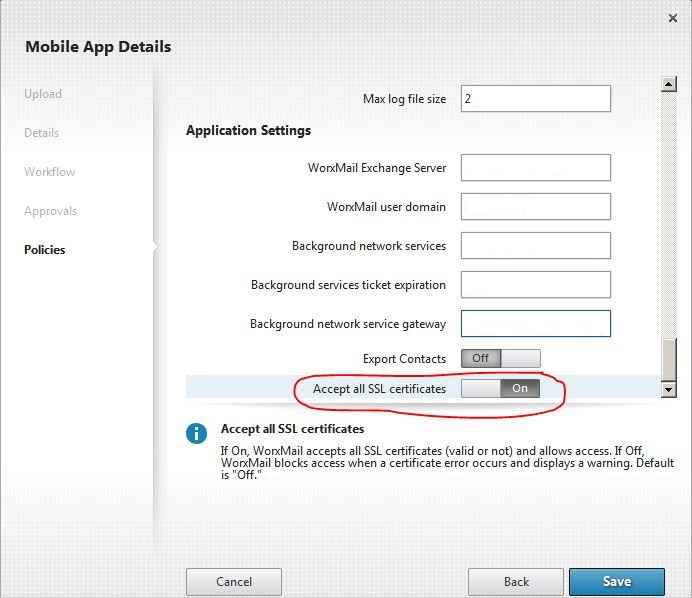
After activating the policy and deploying the new WorxMail Version connections to our internal Exchange Servers worked without any problems (and of course without deploying the internal Root-CA-Certificate).
During the last weeks I did a lot of testing with Citrix XenDesktop 7. There was one thing which was quite hard to figure out why it wasn’t working:
A connection from Citrix Receiver 4.X to StoreFront always failed while I was using the Domain-Credentials (or Domain-Pass-through). No Single-Sign-On (SSON) – even for the configuration of the store – was possible. I was only able to connect the Receiver to StoreFront using the Authentication-Methods “Username and Password” or “Smartcard”. If I tried to configure a Store I always received the message “Select an account to continue”. 
The problem with this message was that I didn’t receive a Dialog to choose a Store…
After a lot of testing’s I found the necessary steps so that SSON was working.
1. Open a command prompt and start the Receiver Installation with the argument /includeSSON 
Without this option the necessary SSON Components are not installed.
2. At the end of the installation don’t choose “Add Account” – SSON is not yet working. 
3. Open “Internet Options” in Internet Explorer an switch to Security. 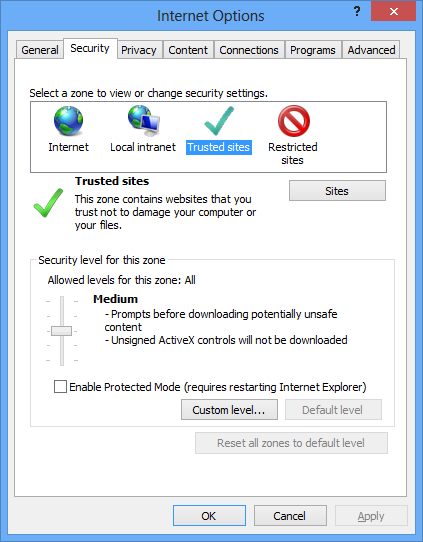
Choose “Trusted Sites”, “Sites” and add the StoreFront FQDN (beginning with https://) 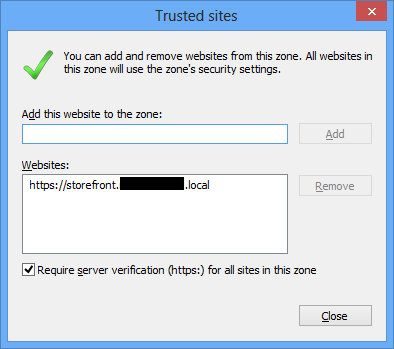
After adding the StoreFront-Address to the "Trusted Sites” open “Custom Level” to change the “Security Settings”. Scroll down to “Authentication” and activate“Automatic logon with current user name and password”, 
[EDIT]
Instead of adding the StoreFront-Adress to the Trusted Sites you can also add it to the “Local Intranet” Zone –than you don’t need to edit the Security Settings. Thanks to Neal Dolson (@ndolson816) for the tip.
[/EDIT]
4. Now you have to logout and login again – otherwise the necessary ssonsvr process is not started. After login open the Task Manager and check if the ssonsvr.exe is running. 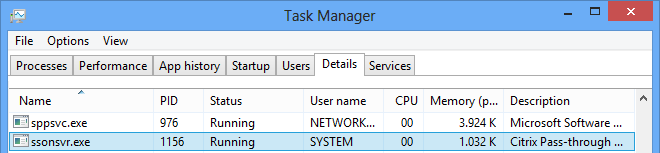
5. That’s it – you can now configure your Store and connect to the store using Domain Pass-through,
If it’s still not working you can configure a Group Policy to activate SSON on your clients. Create a new Policy and add the adm file icaclient.adm. You can find the file on a client with an installed receiver in the folder “C:\Program Files\Citrix\ICA Client\Configuration” or “C:\Program Files (x86(\Citrix\ICA Client\Configuration” on 64Bit systems.
Navigate to “Computer Configuration, Policies, Classic Administrative Templates (ADM), Citrix Components, Citrix Receiver. User Authentication” 
Enable “Local user name and password” with “Enable pass-through authentication” and “Allow pass-through authentication for all ICA connections” activated. 
Link the group policy to your client OU and reboot your clients to apply it. That’s it.
SSONSVR is not starting
If the ssonsvr process is not starting you have to check the network provider order. Open the registry and navigate to
Computer\HKEY_LOCAL_MACHINE\SYSTEM\CurrentControlSet\Control\NetworkProvider\Order
Edit “ProviderOrder” and make sure that “PnSson” is the first entry. 
Reboot your system – after login the process is started.
Published Desktop shows logon screen or connection is directly closed
Another problem that might happen is that a pass-through login to Citrix Receiver is working – but after starting a published desktop the logon screen appears or the connection is directly closed. Furthermore you may find the following error in the event-log:
Source: ICA Service
ID: 34
Description: ICA connection is cancelled because auto-logon is enforced and auto-logon failed.
To fix this you have to add another setting in the above created GPO. Open “…,Citrix Receiver, User Authentication” and enable “Kerberos authentication”. 
Wait until your clients applied the updated GPO (or do a “gpupdate /force”) – starting a published desktop now works without pass-through authentication.
In one of our customer environments I found a really interesting error – the mapping of a printer from a Citrix Universal Print Server failed if we tried to use the Citrix Universal Printer Driver in XenApp. We always received the error message “It was not possible to create a connection to the printer. Check the printer name….” and so on.
First of all we checked if the Universal Print Server client and the necessary Rollup Pack 1 was installed: 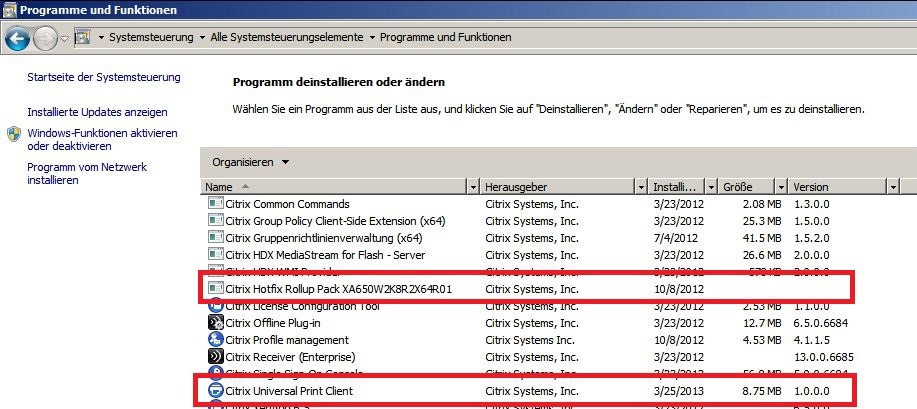
Now we started to check if the necessary Citrix policies have been activated:
Computer: Printer => Universal Print Server => “Universal Print Server enable”
User: Printing => Drivers => Universal Printer driver usage
Both policies had been configured correctly.
Ok – time to check the registry: 
The Universal Printer Driver was enabled with no fallback to a native Windows driver.
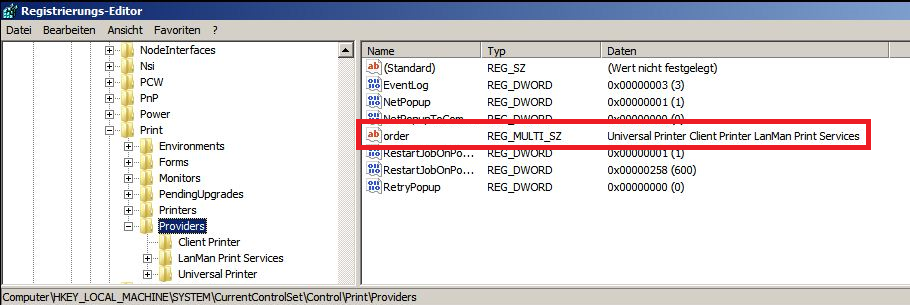
Although the “Universal Printer Client” was the first print provider.

And (of course) the filename of the provider module was correct….
Well – ok – let’s check if the Print Spooler loaded and uses the UPS module:
tasklist /m /fi “imagename eq spoolsv.exe” 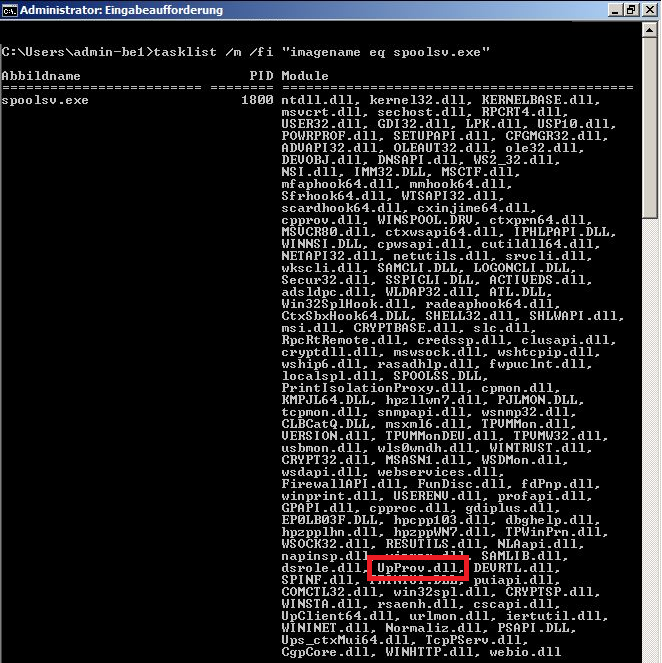
Loaded and available.
Everything seemed to be correct and working – but printer mappings still failed.
After searching more and more into different directions (not worth to mention here) we found the problem – the customer has a big active directory and his users are member of many security groups. And this caused the problem. In CTX134758 you can find a solution for this. You have to modify the Apache webserver configuration on the Universal Print Server to accept bigger Kerberos tickets.
Open “C:\Program Files\Citrix\XTE\conf\httpd.conf”
Add the following line:
LimitRequestFieldSize 65535
It’s extremely important that you add this line either directly as a first line – or at the end of the file – otherwise it’s not going to work. And don’t choose a higher value 
Save the file and restart the UPS-Server-Service.
That’s it – now mapping of printers using the “Universal Printer Driver” from a “Universal Print Server” shouldn’t fail any longer.
One of the biggest challenges in the Mobile World is to secure the company data on the user device. Especially mails and contacts are often directly synced to the user device and if the device gets stolen it’s really easy to get this data. To fix this problem Citrix created the MDX format. The MDX format is kind of a secure box on the mobile device. The data inside is decrypted and even if the device is stolen the data is secured. Until now Citrix published two applications for securing your company’s data – both applications are available for iOS and Android:
WorxMail:
Like the name says this application is a replacement for the “native” mail applications on the user device. Furthermore it supports the calendar and contact synchronization.
WorxWeb:
This is the second application published by Citrix. You can use this application to allow the user a secure access to internal Webservers.
If you now would like to deliver these applications (or any other) to the user Android device you need to finish the following steps:
1. Convert the applications to the MDX format
2. Publish the applications on your Citrix AppController
The Citrix AppController can be integrated into your “normal” Citrix world – but that’s another topic and I’m not going to cover this in this blog article.
First of all you need a Computer with Mac OS X installed – there’s no windows application available to convert an application into the MDX format – hopefully Citrix will publish one in the near feature. Secondly you need the “MDX Toolkit”. You can find this in your Citrix Account. 
After downloading and installing the application you need to download the “WorxMail” or “WorxWeb” Application. If you would like to publish your own application make sure that you have access to the .apk of the application.
Possibly you may need to install the Android SDK onto your Mac. (I am not quite sure about this point – the past versions of the converter needed the SDK and asked for the path to the SDK. This did not happen in the newest version – either it’s detected automatically or it’s not needed any longer – but I didn’t test this….)
After starting the MDX Toolkit – you should see the following screen: 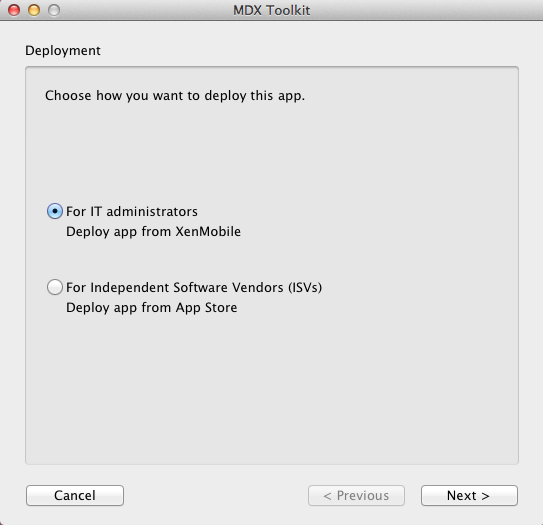
Choose “For IT administrators” and continue with “Next >”.
In the following window you have to choose the Application (APK File) which you would like to convert and continue with “Next >” 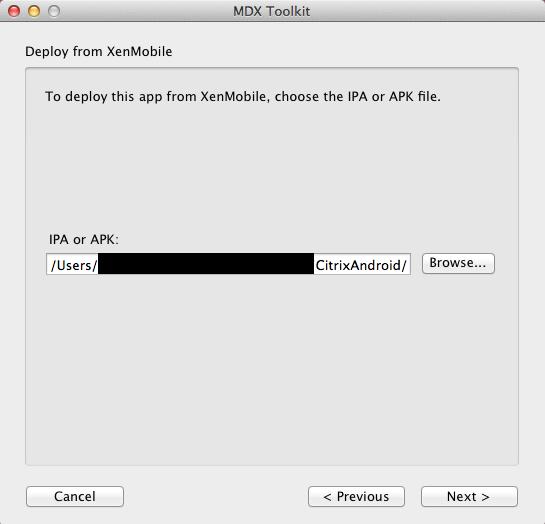
The next window gives you the opportunity to change things like “App name”, “Description” or the Minimum OS version. 
In the next step you need to choose a keystore, You can either choose the option “Use debug keystore” or buy your own public Android publishing certificate. If you would like to use a public certificate read the following document inside the android developer portal – this describes everything around signing android applications. Otherwise choose “Use debug keystore”. 
Now choose a path and a file name for the MDX file. 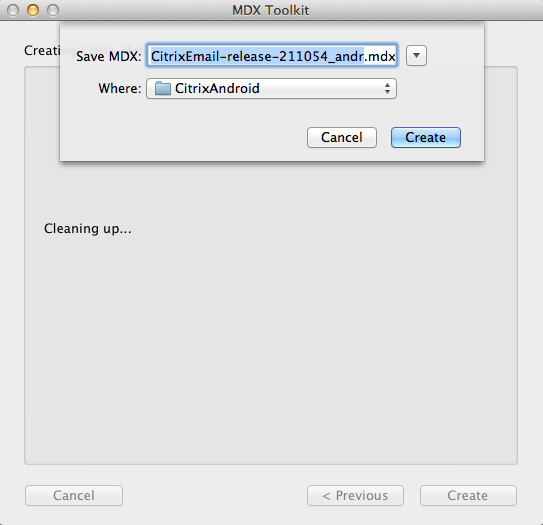
Finally you should see a screen like this: 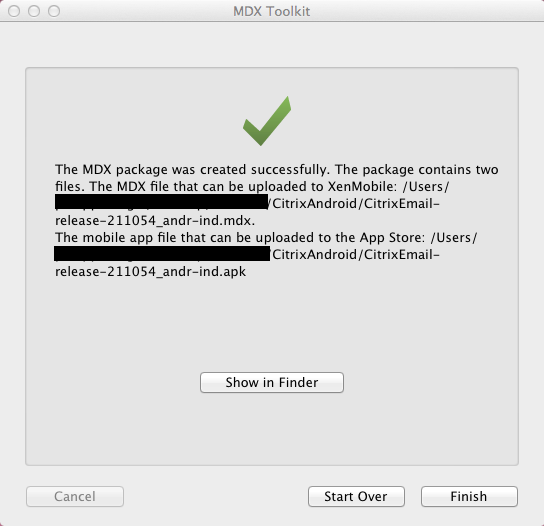
If the conversation fails with an error message you have to copy the /build-tools/appt file to /platform-tools/aapt and /tools/aapt.
After copying the file everything should work without any problems.
The Application is now in the correct format for publishing it to the user. Therefore you have to log on to the administration panel of your AppController (the URL is: https://IPofAppController:4443/ControlPoint)
After logging in with your Administrator Credentials you should see the dashboard. 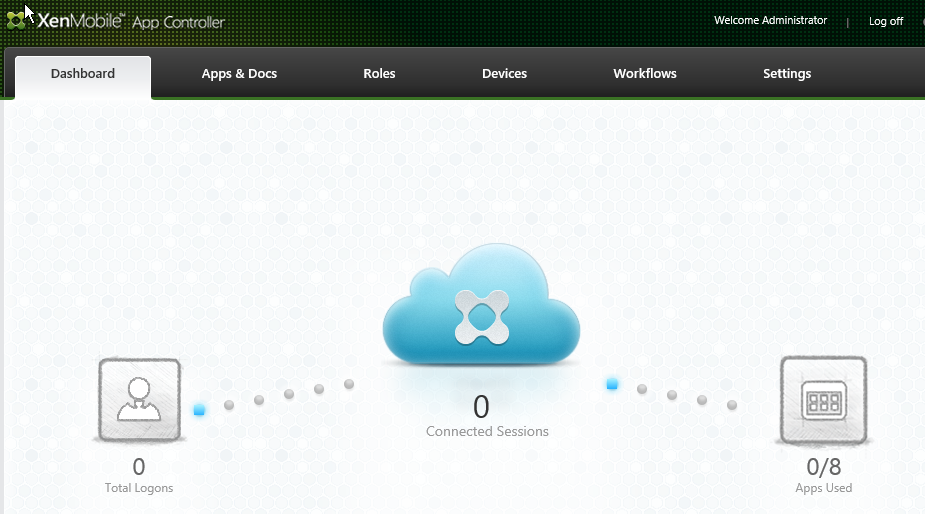
Switch to “Apps & Docs” and open “Android MDX”. You can now add your created Application package using the green “+” Sign. 
Open the created MDX File. 
In the next step you can configure the application details and restrict the OS Versions. Furthermore you can choose the Category – the applications are grouped inside categories so that it’s easier for the user to find a specific application. Also you can restrict the application access by changing the “Assigned role”. Only users inside the configured role will have access to the application. 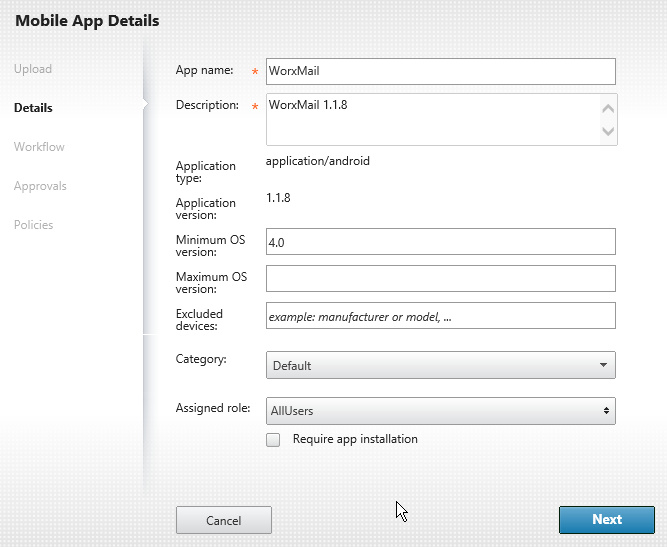
Now you have the opportunity to activate a Workflow approval. This means if a user would like to use an application he can choose the application in his Receiver, then the “Approver" (e.g. Manager) has to allow the application for the user and after this the user is allowed to open the application. 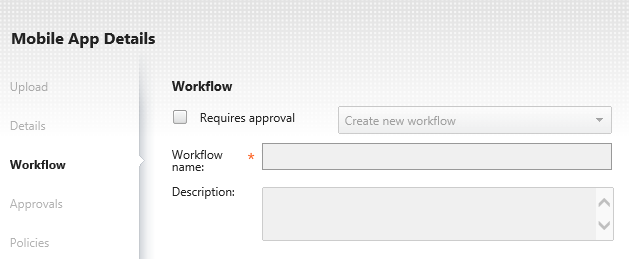
The final step is to configure some application Policies. Depending on the application you have more or less options available. 
E.g. for the WorxMail application you can predefine the Exchange server. 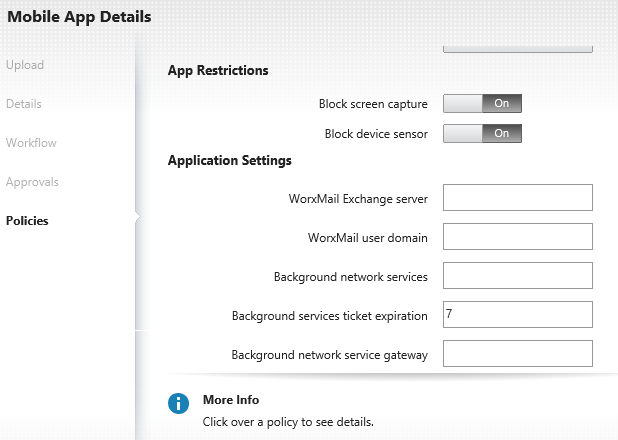
After configuring the required policies you just press “Save” to finish the configuration.
The just configured application should now be visible next to the green plus sign. 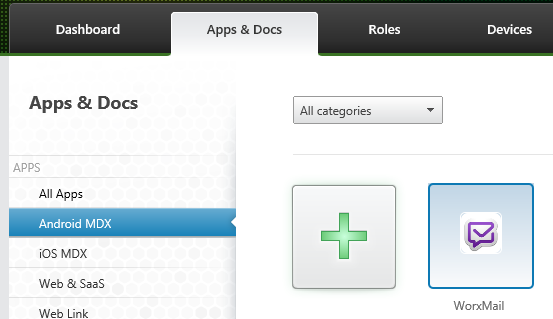
Your users can now access this native application on their Android Device using the Citrix Receiver.
There’s only one more thing you should now: It’s not enough to install the Citrix Receiver on the user device. It’s also required to install the “Worx Home” Application from the Google Play Store. Otherwise the user will be able to install the published application but if he opens the application he receives a message to install the “Worx Home” application. The problem is that this application is not yet available in the Market Store (08 July 2013). Google is still in the proving process. Hopefully it will be available soon.
If you would like to publish an application for iOS devices a lot of the steps are similar – but there are some more things you should now – however that’s stuff for another blog post 
Hopefully this post was helpful to publish secured Android applications and makes the required steps more clear.
I have written another article for the May edition of the magazine IT-Administrator. This time I describe the features and functions of the Citrix Cloud Gateway. Hope you enjoy reading the article. And here is the german teaser:
“Ein neues Produkt aus dem Hause Citrix ist das CloudGateway. Damit möchte Citrix Administratoren die zentrale Bereitstellung aller Enterprise-Anwendungen ermöglichen. Hierzu gehören sowohl klassische Windows-, als auch Software-as-a-Service, sowie Web- und native iOS- und Android-Anwendungen. Ebenfalls ist es hierüber möglich, die von den Benutzern benötigten Daten gesichert bereitzustellen.”"
If you try to configure the Citrix AppController this may fail with the following message:
The administrator’s email address does not exist in Active Directory. Please enter a valid email address.

This error might also occur if you have entered an existing email address. The configuration not only checks if it’s an valid email address for an Active Directory User – it also checks if the corresponding user has a first and a last name. So if you see this message just open the corresponding user and enter a first and last name. After this the error message should be gone.
For the March edition of the IT-Magazine “IT-Administrator” I have written an article about managing Office licenses with the help of the AppSense Application Manager. The Magazine was released yesterday. Hopefully you will like the article.  (Sorry for the german teaser – but the article is also in german….
  )
)
“In Zeiten von BYOD und virtuellen Desktops besteht neben den technischen Herausforderungen auch eine große organisatorische Hürde: die Lizenzierung. Denn nach wie vor gibt es nicht wenige Programme, die pro Gerät zu lizenzieren sind. Angesichts der Fülle an Geräten, mit denen Benutzer auf zentral bereitgestellte Anwendungen zugreifen, ist mit explosionsartig steigenden Lizenzkosten zu rechnen. Um hier für mehr Kontrolle zu sorgen, erlaubt es der AppSense Application Manager, den Start einer zentralen Applikation auf bestimmte Geräte einzuschränken. Wir zeigen Ihnen in diesem Workshop, wie das geht.”
One of our customers recently upgraded his VMWare enviroment from Version 4 to Version 5.1 He is using Provisioning Services to deploy some of his servers.
In the past it was necessary to use the "E1000” Network-Adapter to start the PVS Target Devices. With release 5 of VMWare this changed and it’s now necessary to use the VMXNet3 Network-Adapter. Thus we changed the network adapter (which are saved in the image) from E1000 to VMXNet3 – following these steps:
1. Re-image the PVS-vDisk to a local Hard-Drive from a Virtual-Server
2. Uninstall Citrix PVS Target Device Tools
3. Update of the VMWare Tools
4. Remove the E1000 Network Adapater and add the VMXNet 3 Adapter
5. Reboot the server
6. Install PVS 6.1 Hotfix 16 Target Device Tools
7. Create a new PVS-vDisk (with the updated settings and drivers)
Until now everything worked fine – but if we tried to start any server (except of the master) with this PVS vDisk a blue screen was displayed. Unfortenately we were not able to read the full message because the server was directly rebooted. To stop this you have to press F8 before Windows boots (to get the selection menu with “Safe Mode” and so on) and select “Disable automatic restart on system failure” – now the system is not automatically restarted and you can read the full blue screen message. Interestingly the blue screen only displayed a stop 0x0000007B error – with no further details.
We started to check why this error occured. The vDisk was neither created using a Static IP nor something of the E1000 Adapter was left in the image. Furthermore it didn’t help to activate the “Interrupt Safe Mode” in the Bootstrap settings of the PVS-Servers (which should be ok because it was only needed for VMware 5.0). 
Even a clone of the original master crashed with a blue screen while booting from the vDisk.
In Citrix KB125361 exactly our problem “Target Device Fails to Start with VMXnet3 Drivers” and “The target device fails with a STOP 7B Blue Screen error.” is descripe. Inside of this article a Microsoft Hotfix is mentionend which fixes the following problem “0x0000007B" Stop error after you replace an identical iSCSI network adapter in Windows Server 2008 R2 SP1 or in Windows 7 SP1“ – sounds like our problem.
We removed the PVS Target Device Tools, installed the mentionend Microsoft Hotfix (KB 2550978), installed the PVS Target Device Tools again and created another image and tried to boot our PVS-Targets. Again a blue screen – except of the cloned servers which worked fine.
Oh ok?!? – But where is the difference? After checking the VM-Settings we found an interesting difference:
The cloned servers had the same “Ethernet???.pci” value (you can find these settings under VM-Properties => General => Configuration Parameters) – the new created servers had a different value. After changing this to the same value on the newly created servers they booted withoud any problems. 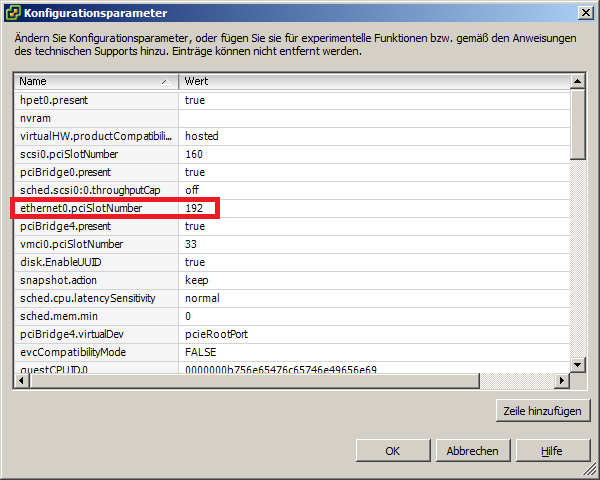
Conclusively we had two problems to fix:
1. Install a Windows Hotfix to solve a problem with changing iSCSI Network Adapters
2. Change the Network Adapter ID inside the VM-Settings to the same number
I just started to Download Microsoft Office 2013 – and found the size quite interesting…666MB….



 Jan Hendriks Blog