If you try to configure the HTML5 Client for Storefront on Windows Server 2012 you receive the following error: 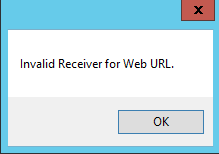
”Invalid Receiver for Web Url.”
With the help of Santosh Tilagul (a nice guy from Citrix) we have been able to fix this. So first of all a big thanks to him for his assistance.
Instead of using the configuration tool you manually do the steps which are normaly automated by the configuration tool.
1. Install the HTML5 HDX Engine on the StoreFront Server
2. Open the explorer and open “C:\Program Files (x86)\Citrix\HTML5 Management”
3. Extract the file “HTML5Client”
4. Copy the extracted folder “HTML5Client” (make sure that there is no subfolder HTML5 Client) into the following path: “C:\inetpub\wwwroot\Citrix\STORENAMEWeb”
5. Open the file “C:\inetpub\wwwroot\Citrix\STORENAMEWeb\web.config”
6. Search for “html5”
7. You should see something like: <html5 enabled=”true” platforms=Firefox;Chrome” launchUrl=…..
8. Modify the launch Url so that it looks like: “HTML5Client/src/SessionWindow.html” (IMPORTANT: with quotations)
9. Save the file (and restart IIS)
10. That’s it: Now StoreFront is able to “deliver” a HTML5 Client
There is one other thing I would like to mention about configuring the HTML5 Client:
In the XenApp Policies it’s really important that you activate all three WebSocket policies. After activating the policies you either have to restart your XenApp Servers or restart the Citrix IMA Service and (with a delay of 15seconds after restarting the IMA service) the Citrix XTE Service.
Now you can start access your Applications using a HTML5 “Client”.
If your StoreFront Server is not (!) connected to the Internet the service “Citrix Credential Wallet service” may fail to start with the following error:
The Citrix Credential Wallet service failed to start due to the following error:
The service did not respond to the start or control request in a timely fashion.
Evemt ID: 7000
Source: Service Control Manager 
To fix this you have to change a setting in the following file:
C:\Program Files\Citrix\Receiver Storefront\Services\CredentialWallet\ Citrix.DeliveryServices.CredentialWallet.ServiceHost.exe.config
Open this file (e.g. with Notepad) and search for the following entry:
<runtime>
<!– Set enabled=false, if this machine does not have external access to the internet –>
<generatePublisherEvidence enabled="true"/>
</runtime>
Change the setting “generatePublisherEvidence enabled=”true”” into “generatePublisherEvidence enabled=”false”” and save the file. After changing this setting you should be able to start the “Citrix Credential Wallet service” even if your StoreFront-Server is not connected to the Internet.
During the last days I startet to test the Citrix Netscaler 10 Build 69.4. After booting the first VPX-Appliance I wasn’t able to save a changed configuration – even if it was only a single change. Neither the save on the command line nor the save using the Webinterface worked. In both methodes I activated “save” but nothing happened and you had to reconnect your session (no input was possible any longer).
After searching around a little bit I found a solution for this: There is a confirmed bug in Build 69 which stops the saving function to work correct if no license is imported into the Netscaler. After importing a license and restarting the appliance the save function was working as expected. Hopefully this bug will be fixed in the next build.
Another error occurred when I tried to activate a second node for the “High Availability” feature:
“Error on remote node
null” 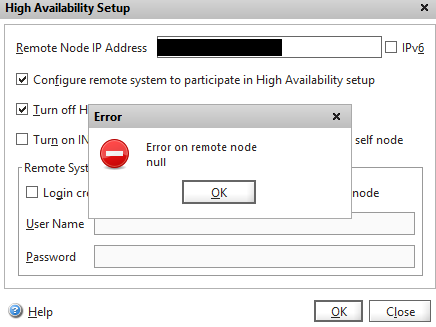
Except of the network settings and the license files nothing was configured on both nodes. To solve this error you have to activate the “Login credentials” for the other node – even if they are still the same (like in my case). 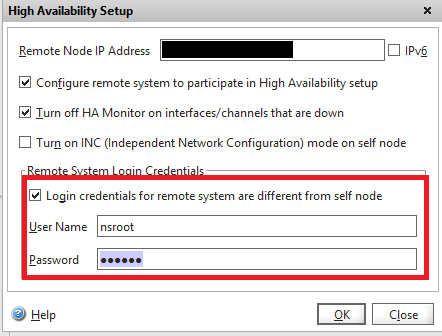
After entering the credentials everything was working fine and the HA-Pair was created. For me this looks like another bug in this build… 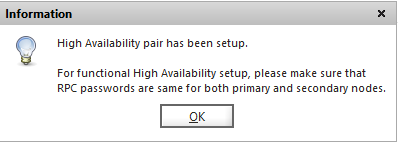
HTH 
If you install Microsoft Forefront TMG you may have the following problem: It doesn’t matter which traffic you allow – no Traffic passes the FTMG. For a working FTMG you need to disable some Windows-Network-Settings.
Open the properties of each Network-Connection and disable the following properties (repeat this for every Network-Connection!).
1. Open the Properties of the Network-Connection 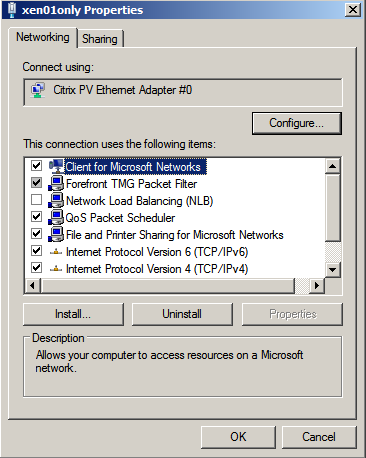
2. Choose “Configure” for the "Network-Card” 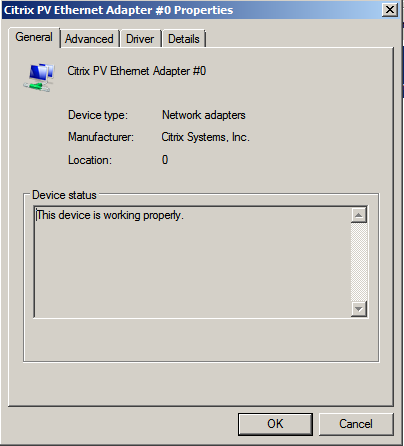
3. Open “Advanced”-Tab and “Disable” “Correct TCP/UDP Checksum Value!” 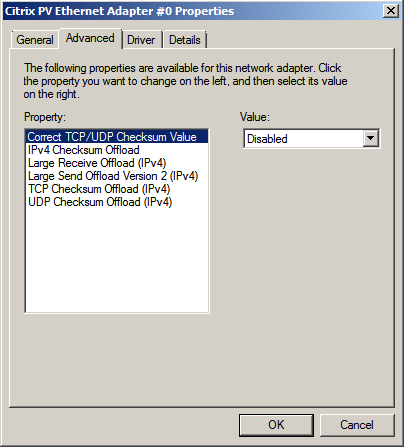
4. Disable “IPv4 Checksum Offload” 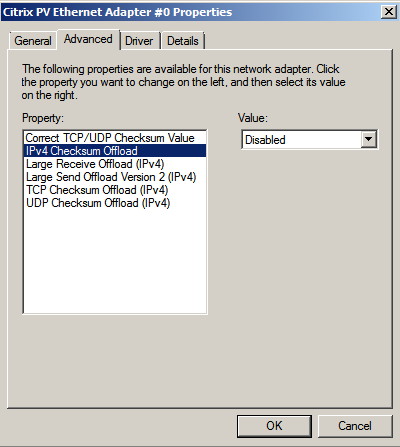
5. Disable “Large Receive Offload (IPv4)” 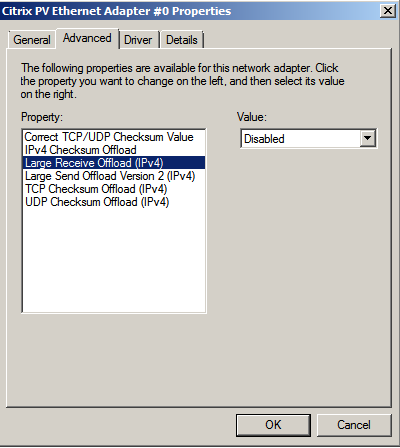
6. Disable “Large Send Offload Version 2 (IPv4)” 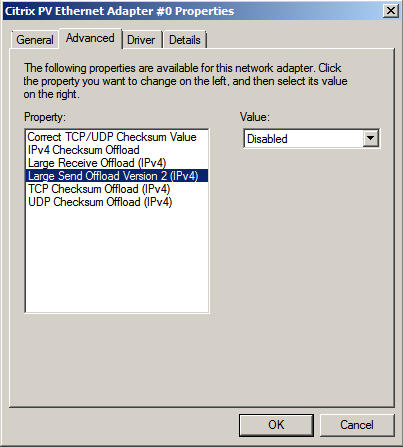
7. Disable “TCP Checksum Offload (IPv4)” 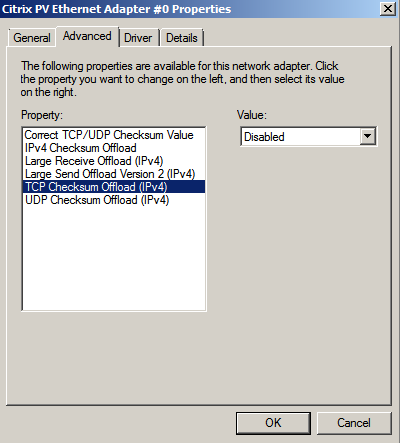
8. Disable “UDP Checksum Offload (IPv4)” 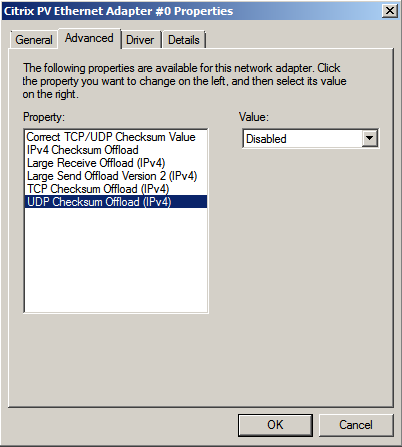
After disabling these settings for all Network-Cards you furthermore have to set the following Registry-Settings:
Windows Registry Editor Version 5.00
[HKEY_LOCAL_MACHINE\SYSTEM\CurrentControlSet\services\Tcpip\Parameters]
"DisableTaskOffload"=dword:00000001
"EnableTCPChimney"=dword:00000000
"EnableRSS"=dword:00000000
"EnableTCPA"=dword:00000000
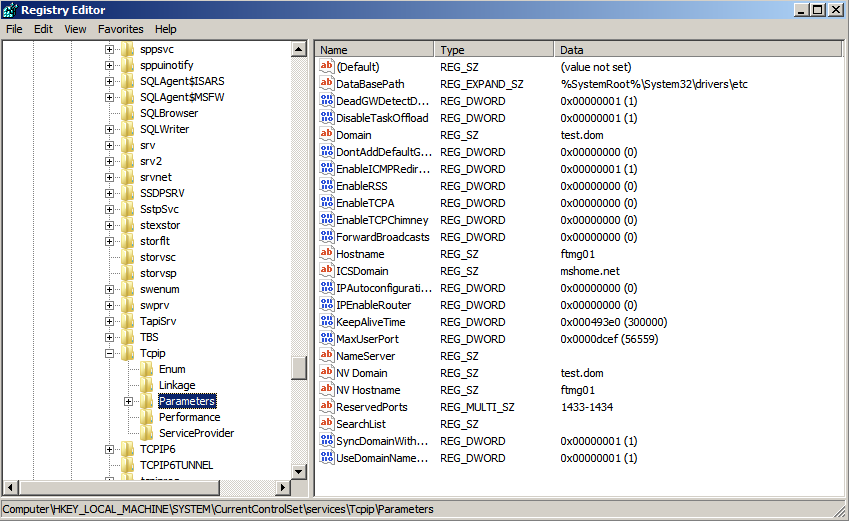
And finaly a reboot is needed – after this reboot everything should work like expected.
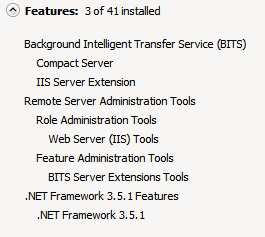
Before you can install a Product from the AppSense Suite you need to make sure that some Windows Roles and Features are already installed. In the documentation I didn’t find a good list which Product which Windows Role/Feature needs – so I made one and here it is:
Management Center:
Roles: 
Features: 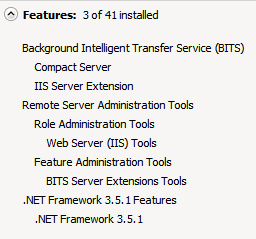
Personalization Server:
Roles: 
Features: 
Central Statistics Server:
Roles: 
Features:
And last but not least the Roles/Features for all components together:
Roles: 
Features: 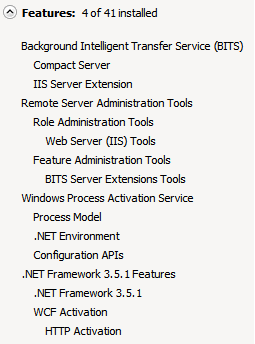
Everything which is not mentioned can be installed during the AppSense Installation-Process.
I just started testing the “AlwaysOn High Availability Groups” function of Microsoft SQL2012. While I tried to configure a group the configuration wizard always finished with the following error:

TITLE: Microsoft SQL Server Management Studio

------------------------------

Joining database on secondary replica resulted in an error.

(Microsoft.SqlServer.Management.HadrTasks)

------------------------------

ADDITIONAL INFORMATION:

Failed to join the database 'XenApp' to the availability group

'sql2012ha01' on the availability replica 'SQL02'.

(Microsoft.SqlServer.Smo)

For help, click: http://go.microsoft.com/fwlink?ProdName=Microsoft+SQL+Server&ProdVer=11.0.2100.60+((SQL11_RTM).120210-1917+)&EvtSrc=Microsoft.

SqlServer.Management.Smo.ExceptionTemplates.FailedOperationExceptionText

&LinkId=20476

------------------------------

An exception occurred while executing a Transact-SQL statement or batch.

(Microsoft.SqlServer.ConnectionInfo)

------------------------------

The connection to the primary replica is not active.  The command cannot

be processed. (Microsoft SQL Server, Error: 35250)
If you then check the created availability group the primary node is online and the secondary node is offline.
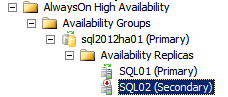
When I now tried to “Join” the Secondary Server into the availability group the following message was displayed:
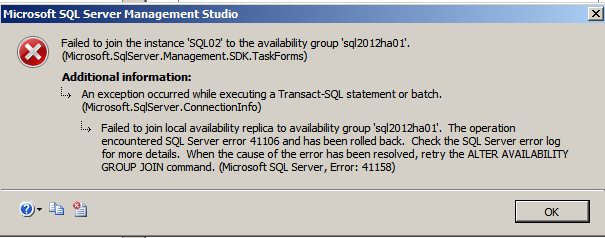
TITLE: Microsoft SQL Server Management Studio

------------------------------

Failed to join the instance 'SQL02' to the availability group

'sql2012ha01'. (Microsoft.SqlServer.Management.SDK.TaskForms)

For help, click: http://go.microsoft.com/fwlink?ProdName=Microsoft+SQL+

Server&ProdVer=11.0.2100.60+((SQL11_RTM).120210-1917+)&EvtSrc=Microsoft.

SqlServer.Management.Smo.ExceptionTemplates.FailedOperationExceptionText

&LinkId=20476

------------------------------

ADDITIONAL INFORMATION:

An exception occurred while executing a Transact-SQL statement or batch.

(Microsoft.SqlServer.ConnectionInfo)

------------------------------

Failed to join local availability replica to availability group

'sql2012ha01'. The operation encountered SQL Server error 41106 and has

been rolled back. Check the SQL Server error log for more details. When

the cause of the error has been resolved, retry the ALTER AVAILABILITY

GROUP JOIN command. (Microsoft SQL Server, Error: 41158)

For help, click: http://go.microsoft.com/fwlink?ProdName=Microsoft%20SQL%

20Server&ProdVer=11.00.2100&EvtSrc=MSSQLServer&EvtID=41158&LinkId=20476
In the Microsoft Technet I found the following solutions:
http://technet.microsoft.com/en-us/library/ff878308.aspx#JoinDbFails
But that didn’t help me to solve my problem.
After looking a little bit around I found a hint that a special Port in the Windows Firewall has to be opened for the Availability Group Replication. After creating the Group you can easily check which port is used (default: 5022). You just need to open the properties of the working node in the Availability Group. The replication port is displayed at the end of the “Endpoint URL”.


Interestingly I still got the same error after opening the Port on all Nodes in the Windows Firewall. But this time the following error was shown in the Application Event Log of the Primary Server.

Database Mirroring login attempt by user 'DOMAIN\SQL02$.' failed

with error: 'Connection handshake failed. The login 'DOMAIN\SQL02$'

does not have CONNECT permission on the endpoint. State 84.'.

[CLIENT: 192.168.XX.XX]
The reason for this is quite simple: For the replication the SQL-Server connects to the Replication Servers. These connection is made with the account under which the SQL-Service is running. If this isn’t changed on all Servers to the same Active-Directory User (during the Installation) normally an account like “NT Service\MSSQLSERVER” is used. If this account is configured for the Service the connection is made with the “Computer Account” of each Node.
To solve this problem you need to add the Computer Account of each other node to the SQL Security Settings. The accounts need the right “Connect on Endpoint”. In my Lab I configured the other Computer-Accounts on every SQL Server and gave them Sysadmin rights – in a productive environment I suggest to give the accounts only the necessary rights (Connect on Endpoint). To add the other Computer Accounts just go to the Security Settings and add a Login using Windows Authentication. The account is named “DOMAIN\COMPUTERNAME$”.

To give the user only the required rights (Connect on Endpoint) you need the following script:
use [master]

GO

CREATE LOGIN [DOMAIN\COMPUTERNAME$] FROM WINDOWS

GO

GRANT CONNECT ON ENDPOINT::[Hadr_endpoint] TO [DOMAIN\COMPUTERNAME$]

GO
You have to modify the script with the Computer names of every other node.
After the accounts are added – just create your Availability Group again – this time everything should work without any problems 
Hello everybody. Today I would like to blog about a “new” Topic: AppSense.
When you try to configure the AppSense Personalization Server on a non English Windows-System there is a problem with “repairing” one necessary “Prerequisites”. After launching the Configuration Wizward you might get the following information:
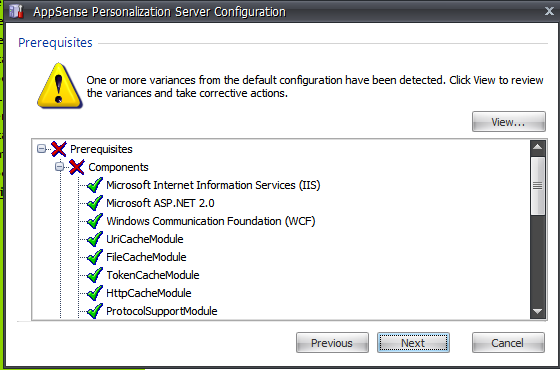

Normally you now just need to press “View” to get the following screen to “repair” the missing component: 
After activating “Repair Selection” or “Repair All” it should look like this: 
If you now click on close (or refresh) on a non english OS the Variance Report still shows a missing component – the same like before: 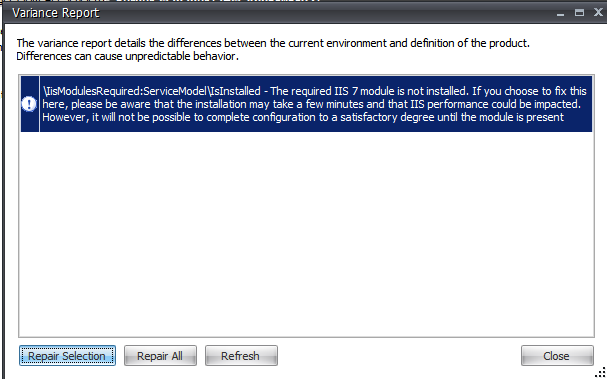
The solution to solve this problem is quite simple: Just install the Windows-Feature “Windows Process Activation Service” (in german it’s called “Windows-Prozessaktivierungsdienst” with all three components – it’s needed by the AppSense Personalization Server. After installing this feature you have to click on “Repair Selection” another time – but this time the Variance should be gone. 
Hello everybody – after a longer break (I traveled around in Australia for 5 Month and it was awesome!) here another short blog post:
While I was testing around a little bit with XenClient the Sleep Mode of the Notebook was not working. When I tried to manually activate the Sleep Mode the following message was displayed:
“Host sleep is disabled while in TXT measured launch”
The reason for this is quite simple: If this happens the TXT Function (Trusted Execution Technology) is enabled in the Bios of the Computer. After disabling this Function the sleep mode is directly working without any problems.
The explanation for this behavior can be found in the XenClient 2.1 Setup and Usage Guide on page two:
For the correct Function of XenClient the following things must be disabled in the Bios of the Computer: Trusted Execution Technology (TXT) and the Trusted Platform Module (TPM). (TXT and TPM support is available in the XenClient XT product.)
When you try to backup your Exchange 2010 SP1 Mailbox-Databases with HP Data Protector 6.11 there are some special configurations which have to be done for a working Single Mailbox Backup. In this short description I would like to show you which steps are necessary to create/make an Exchange 2010 SP1 Single Mailbox Backup with HP Data Protector 6.11.
1. Install the Data Protector Agent on the Exchange Mailbox-Server – don’t forget to activate the “MS Exchange Integration”.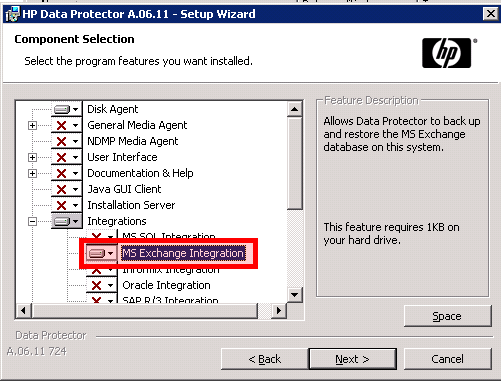
2. Create an Active-Directory User (e.g. “Data.Protector” with an activated mailbox. Furthermore add this user to the Active-Directory Exchange-Group “Organization Management”.
3. Add this user to the Administrators-Group of the Mailbox-Server.
4. Install “Microsoft Exchange Server MAPI Client and Collaboration Data Objects” on your Mailbox-Server. You can download the installation files from here.
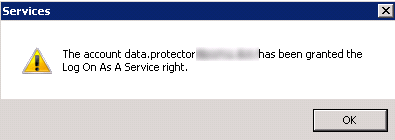
5. Change the “Log on” of the service “Data Protector Inet” to the user which was created in step 2. And restart the service. (When you change the “Log On” the user automatically gets the right to “Log on as a service”.)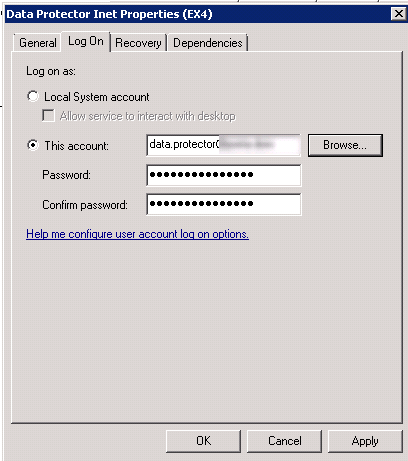
6. The next step is sometimes not necessary because it’s automatically done by Data Protector – but I would suggest you to do it so that you can be sure that it’s correctly configured. Data Protector needs a Mapi-Profile for a Mailbox-Backup. To create this Mapi-Profile the following steps have to be done:
Connect to the Exchange Server using RDP and log on with the created Service-User.
Open a CMD.
Change the path to: C:\Program Files\OmniBack\bin>
Run: mbx_bar.exe create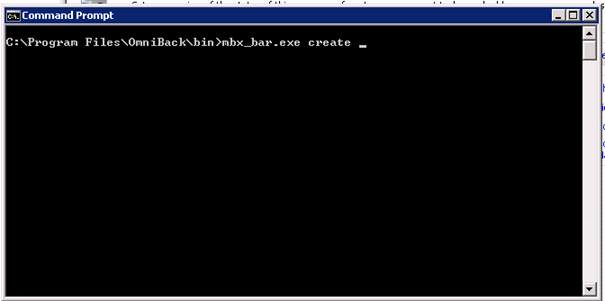
If you now see a profile named “$$$Data Protector” –everything is fine and you can just click on “OK”. Otherwise create a new Profile with the name “$$$Data Protector”.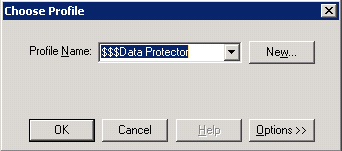
7. Finished  That’s it – now you should be able to create a Single-Mailbox-Backup in HP Data Protector.
Errors:
When you miss one of the mentioned steps you may receive on of the following errors – or other ones 
A Login-Dialog is displayed when you try to configure a Single-Mailbox-Backup.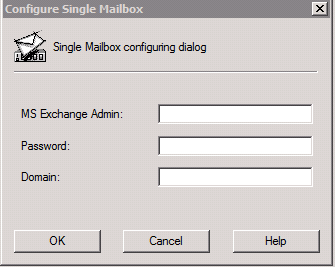
Or the following message is displayed: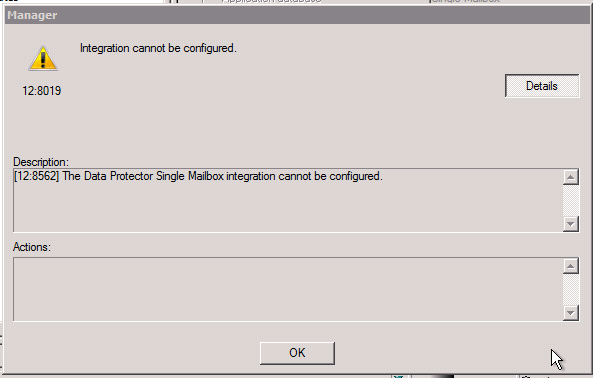
[12:8562] The Data Protector Single Mailbox integration cannot be configured.
or…or…or…
Hopefully I was able to help you with this post to backup your Exchange 2010 SP1 Mailboxes with HP Data Protector.
When you try to remove the default Exchange 2010 Mailbox-Database you get the following error:
[PS] C:\Windows\system32>Remove-MailboxDatabase -Identity “Mailbox Database 0042864039” This mailbox database contains one or more mailboxes, mailbox plans, archive mailboxes, or arbitration mailboxes. To get a list of all mailboxes in this database, run the command Get-Mailbox -Database <Database ID>. To get a list of all mailbox plans in this database, run the command Get-MailboxPlan. To get a list of archive mailboxes in this database, run the command Get-Mailbox -Database <Database ID> -Archive. To get a list of all arbitration mailboxes in this database, run the command Get-Mailbox -Database <Database ID> -Arbitration. To disable a non-arbitration mailbox so that you can delete the mailbox database, run the command Disable-Mailbox <Mailbox ID>. To disable an archive mailbox so you can delete the mailbox database, run the command Disable-Mailbox <Mailbox ID> -Archive. Arbitration mailboxes should be move
d to another server; to do this, run the command New-MoveRequest <parameters>. If this is the last server in the organization, run the command Disable-Mailbox <Mailbox ID> -Arbitration –DisableLastArbitrationMailboxAllowed to disable the arbitration mailbox. Mailbox plans should be moved to another server; to do this, run the command Set-MailboxPlan <MailboxPlan ID> -Database <Database ID>. + CategoryInfo : InvalidOperation: (Mailbox Database 0042864039:DatabaseIdParameter) [Remove-MailboxDatabase], AssociatedUserMailboxExistException + FullyQualifiedErrorId : 69BB660C,Microsoft.Exchange.Management.SystemConfigurationTasks.RemoveMailboxDatabase
If you now check the Mailboxes on the Database no Mailboxes are shown – but there are still some hidden System-Mailboxes. With the following command you can see these System-Mailboxes:
“Get-Mailbox -Database “Mailbox Database 0042864039” -Arbitration | ft -wrap –auto”
Move these Mailboxes with the following command to a new Database (replace the identity with the identities which are shown in your enviroment – and the “TargetDatabse” with a valid one in your enviroment):
”New-MoveRequest -identity “SystemMailbox{e0dc1c29-89c3-4034-b678-e6c29d823ed9}” -TargetDatabase “Mailbox Database 0668101183″”
After these moves are finished you can delete the original Database without any error.


 Jan Hendriks Blog